

Replace expensive apps with these free alternatives
Plus: Amazon’s new Kindles, YouTube improvements, and fall Prime deals
 Jared Newman |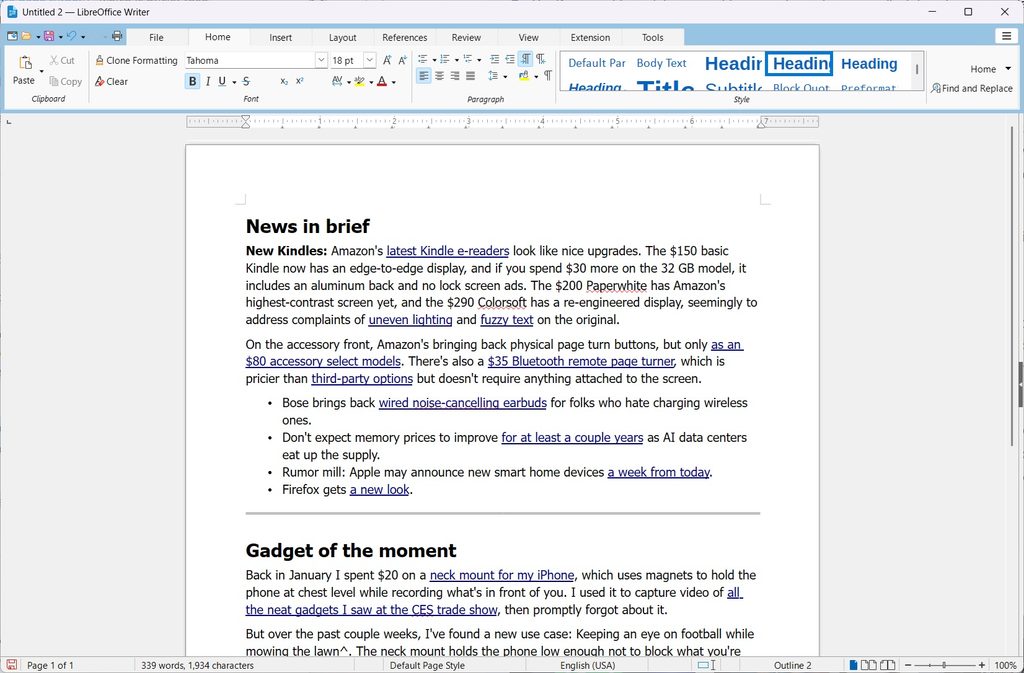
Hey there! I’m Jared Newman, a longtime tech journalist, and this is Advisorator, my weekly tech advice newsletter. Did someone share this newsletter with you? Sign up to get it every Tuesday.
You’re reading the free edition. Paying members get in-depth features each week, including this one:
I’m a proponent of paying for software that regularly delivers value, which is why I happily subscribe to Obsidian, Fastmail, Kagi, and Bitwarden, among others.
But having those subscriptions means it’s all the more important to weed out the ones that aren’t really necessary. For me, those are typically apps from big companies that I don’t use extensively, but nonetheless require ongoing fees to use them.
As part of my ongoing goal to help Advisorator members save money, I’ve rounded up some free alternatives to popular programs such as Microsoft Word and Adobe Photoshop, all of which I have personally tested …
Keep reading this story with a paid membership. The free newsletter continues below.
News in brief
New Kindles: Amazon’s latest Kindle e-readers look like nice upgrades. The $150 basic Kindle now has an edge-to-edge display, and if you spend $30 more on the 32 GB model, it includes an aluminum back and no lock screen ads. The $200 Paperwhite has Amazon’s highest-contrast screen yet, and the $290 Colorsoft has a re-engineered display, seemingly to address complaints of uneven lighting and fuzzy text on the original.
On the accessory front, Amazon’s bringing back physical page turn buttons, but only as an $80 accessory for select models. There’s also a $35 Bluetooth remote page turner, which is pricier than third-party options but doesn’t require anything attached to the screen.
Other notable news and reads:
- Bose brings back wired noise-cancelling earbuds for folks who hate charging wireless ones.
- Don’t expect memory prices to improve for at least a couple years as AI data centers eat up the supply.
- Rumor mill: Apple may announce new smart home devices a week from today.
- Firefox gets a new look.
Gadget of the moment
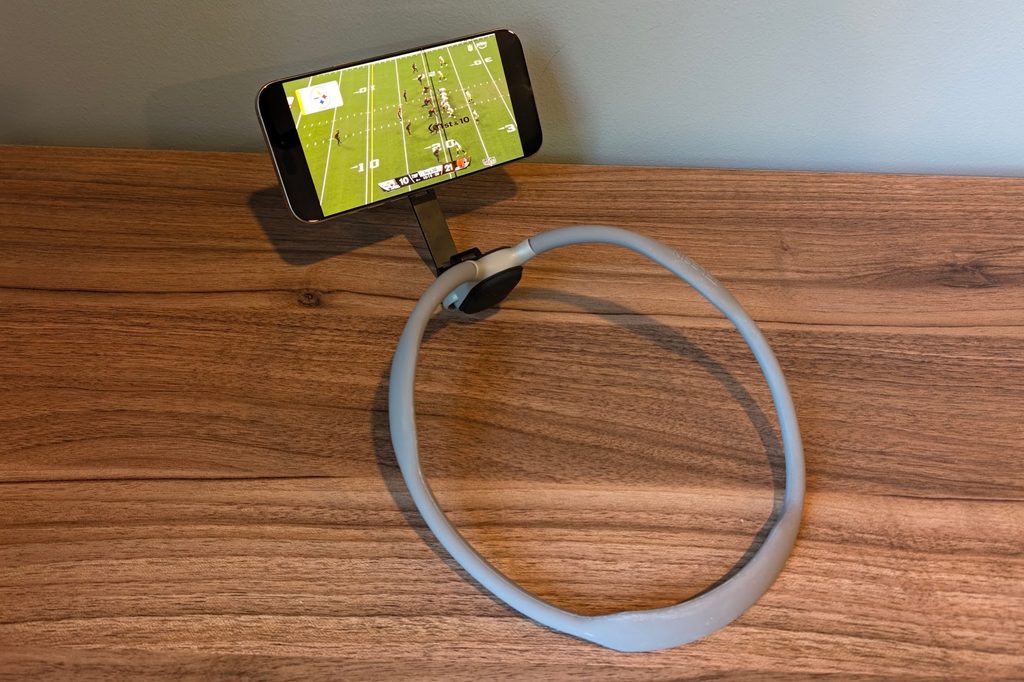
Back in January, I spent $20 on a neck mount for my iPhone, which uses MagSafe to hold the phone at chest level while recording what’s in front of you. I used it to capture video of all the neat gadgets I saw at the CES trade show, then promptly forgot about it.
But over the past couple weeks, I’ve found a new use case: Keeping an eye on football while mowing the lawn*. The neck mount held the phone low enough not to get in my way, but high enough to quickly glance down when I hear some excitement through my earbuds. It is unashamedly dorky but also awesome.
The neck mount works with MagSafe-compatible iPhones and Android phones with built-in Qi2 support, such as Google’s Pixel 10 and 11 series. Otherwise, you’ll need a magnetic phone case with either MagSafe or Qi2 support.
*Obligatory disclaimer about paying attention to what you’re doing and pausing as needed to avoid mowing through a flower bed (or worse).
Try this app
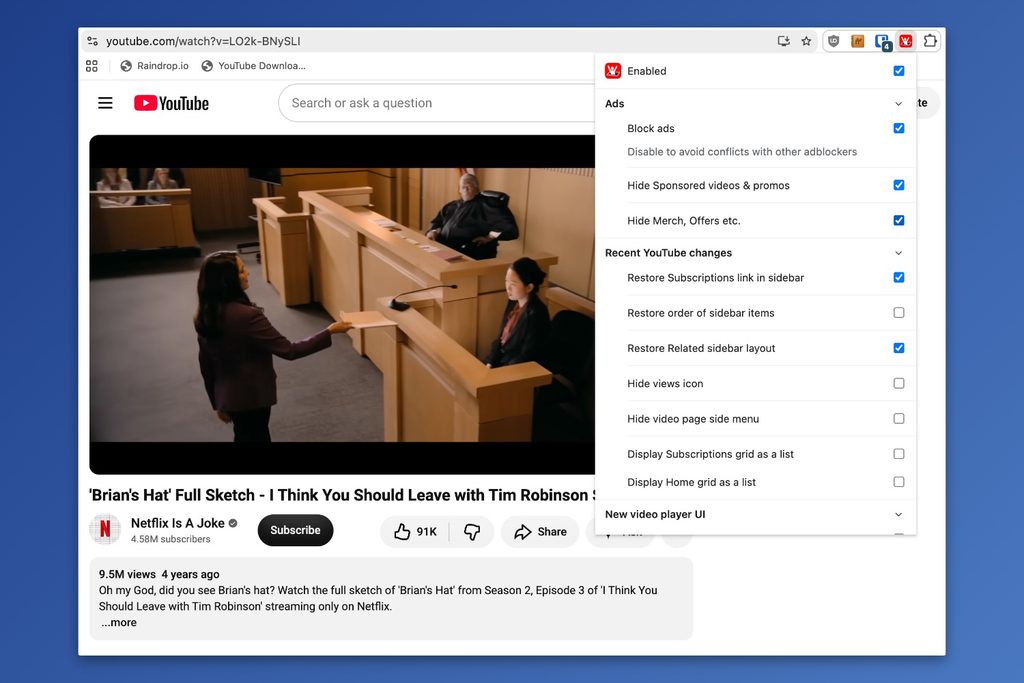
Make YouTube yours: Control Panel for YouTube is a free web browser extension for customizing how YouTube’s website looks and behaves. Once installed, click the Control Panel icon in your browser’s menu bar to start making changes.
The options are honestly a bit overwhelming, but I’ll call out a handful of notable ones:
- Block ads: This is enabled by default. (Disable if you’re already using another ad blocker for YouTube.
- Restore Miniplayer button (under “New video player UI”): Useful if you’ve disabled YouTube’s automatic picture-in-picture when you switch tabs, but still want to invoke it manually.
- Disable autoplay (under “Video pages”): Enabled by default.
- Hide related videos (under “Video pages”): Gets rid of the recommendation sidebar that can send you down a rabbit hole.
- Hide Shorts (under “Shorts”): Enabled by default, removes vertical videos from the home screen.
To restore YouTube’s regular behavior, just disable or uninstall the extension, then reload YouTube.
Spend wisely
This section of the newsletter may include affiliate links, which earn me a commission if you wind up purchasing something.
Amazon apparently couldn’t wait until Black Friday for another manufactured Prime member sale event, so we’ve got some more deals than usual this week. As always, a lot of the sale prices aren’t anything special, but here are some deals that stand out:
- Lisen 5,000 mAh MagSafe power bank for $13.29 with code ICE0E2V6. I have one of these, can get a little warm but works in a pinch.
- AOC 15-inch portable monitor for $48.
- AirPods Pro 3 for $179, which is $20 off the usual sale price.
- Apple Watch SE 3 returns to record-low $199.
- Apple Watch Series 12 gets its first decent price drop to $350.
- MacBook Air models are $200 off, lowest prices since before the RAM crisis.
- The M6 Mac Mini is on sale for $780, which is $119 off the list price.
- Last-gen Kindle Paperwhite with wireless charging for $170 with wireless charging and no lock screen ads.
- Seagate 4 TB portable drive for $160.
- Google Pixel 11 for $749, 11 Pro for $849, 11 Pro XL for $999. Best Buy has open-box options for less.
- Blink Outdoor camera, doorbell, and sync module (with subscription-free SD card storage) for $42.
And here are some deals happening outside of Amazon:
- Select Best Buy stores: 25W chargers for $5 apiece (pick-up only).
- Or, get a two-port 35W charger for $8.
- Apple Watch Solo Loop bands: Two for $10. (Use Apple’s print-out size guide first.)
- Costco members: Apple Watch Ultra 4 is already $100 off at $700.
- Walmart clears out the AirPods 4 for $79.
- Samsung Galaxy S26 for $584 refurbished (“excellent”) with code COUNTDOWN20.
- Samsung Galaxy S25 Ultra for $600 refurbished (“excellent”) with code COUNTDOWN20.
- Dell XPS 13.4-inch laptop (Intel Core 5 Series 3, 16 GB RAM, 512 GB storage) for $800, or $666 open-box.
- 27-inch QD-OLED monitor for $300.
Consider an Advisorator membership!
You’ll get weekly feature stories, like the one I wrote this week on free alternatives to popular paid apps, plus access to all my online tech tutorials. I’ll help you become a more confident tech user and hopefully save you some money along the way. Join us!
That’s all for now. Catch you next week.
– Jared