
Advisorator Free: A space-saving Google Photos trick

Hey folks! Just a reminder that you’re reading the free edition of Advisorator. Right now, I’m celebrating this newsletter’s third birthday with discounts on monthly or quarterly subscriptions, so you can get your first three months for $9 or your first year for $40.
As a subscriber, you’ll get in-depth features along with extra tips and deals in your inbox each week. I’ll also serve as your personal tech advisor via email or Advisirator’s live chat room, and as always, the newsletter is ad- and sponsorship-free. Thanks for your support!
Tip of the moment: A space-saving Google Photos trick

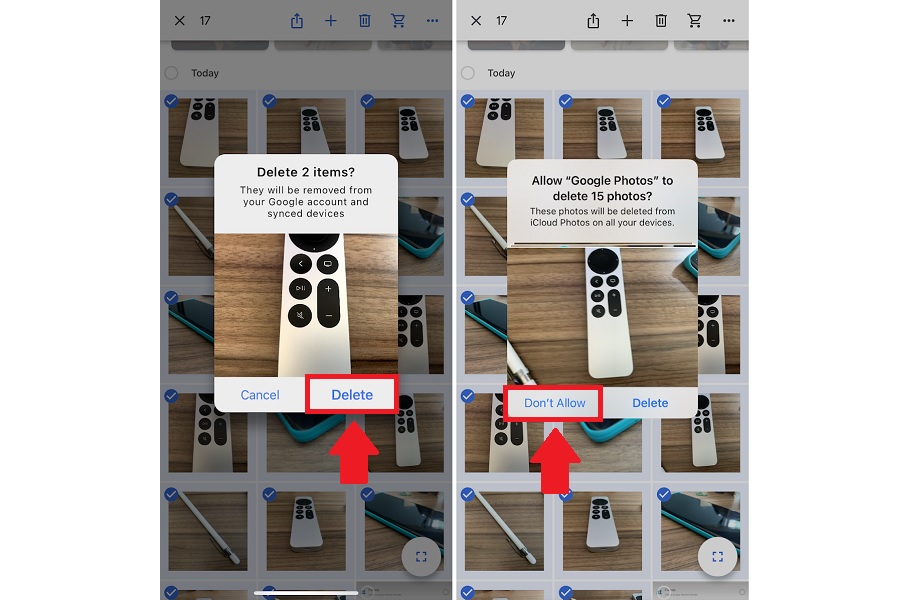
With the end of unlimited Google Photos storage, we all have to cut back on how much we upload. Unfortunately, the way Google deals with edited photos on iOS makes this trickier than it ought to be. If you edit a photo through the iPhone’s Camera Roll after you’ve already uploaded it, Google Photos will then upload the modified version as a second copy, wasting space.
Fortunately, reader John W. pointed me to a clever workaround that lets you quickly remove the original copies from Google Photos, leaving only the edited versions behind:
- Open the Google Photos app and select a large batch of photos, making sure at least one of them is an edited copy. (Remember, you can quickly select lots of photos by long-pressing and dragging your finger across a group of them.)
- Hit the delete button.
- If you see a prompt that says “Delete items,” hit Delete. (Do not hit Delete if the prompt says “Allow ‘Google Photos’ to Delete” instead. That means you didn’t select any edited copies, and you’ll be immediately deleting your selected photos instead.)
- Now, you’ll see a second prompt, asking to “Allow ‘Google Photos to delete.'” At this step, hit “Don’t Allow.” This will preserve all your photos except ones that have edited copies.
I suggest trying this once with a single pair of photos to see how it works. After that, you can select larger batches to remove lots of duplicates at once. And if you do accidentally delete any photos you wanted to keep, just open your Photos app, tap on “Albums,” then scroll to the bottom and select “Recently Deleted.” From there you can tap on any photo and hit “Recover” to get it back.
Spend wisely
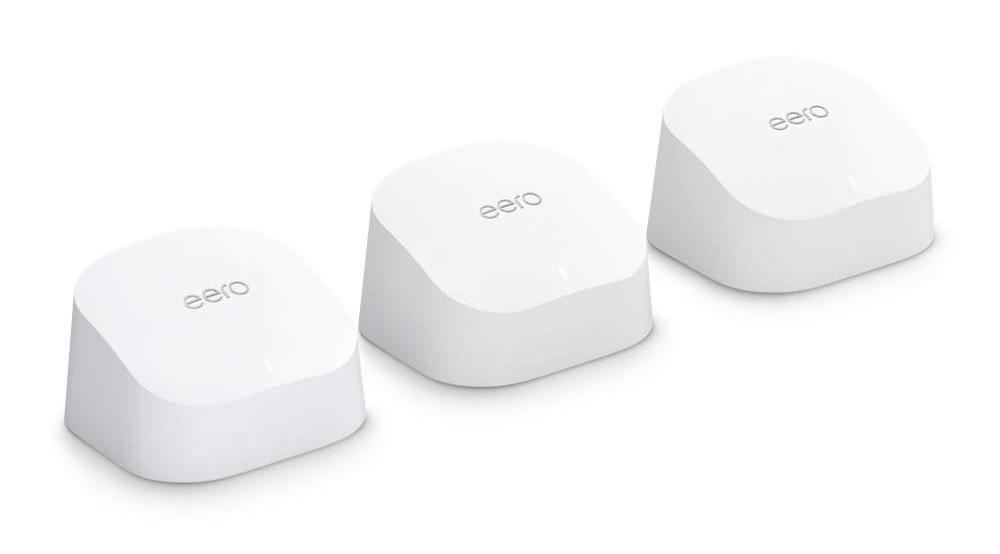
Although Amazon Prime Day doesn’t start until June 21, some early deals are starting to trickle in already. Here’s a quick rundown:
- Get a two-pack of Eero 6 mesh Wi-Fi routers for $129 (reg. $199), or a three-pack for $181 (reg. $279).
- Pair a wired Ring doorbell camera with a third-gen Echo Dot speaker for $45.
- Get a 48-pack of Amazon Basics AA batteries for $12.
- If you spend at least $10 on “small businesses,” you’ll get $10 to spend on Prime Day. Here’s the small business electronics page.
Thanks for reading!
There’s no syndicated PCWorld column this week, but I’ll be back before Prime Day with some advice on how to make sure you’re getting the best deals.
I’ll also be sharing my favorite Prime Day deals in the full edition of Advisorator, so now’s a fine time to consider upgrading your subscription to get in-depth features and more every week. Sign up now to get a discounted price of $9 for your first three months or $40 for your first year.
Until next time,
Jared