
The great iPad vs. laptop debate

Why the iPad still hasn’t replaced my laptop

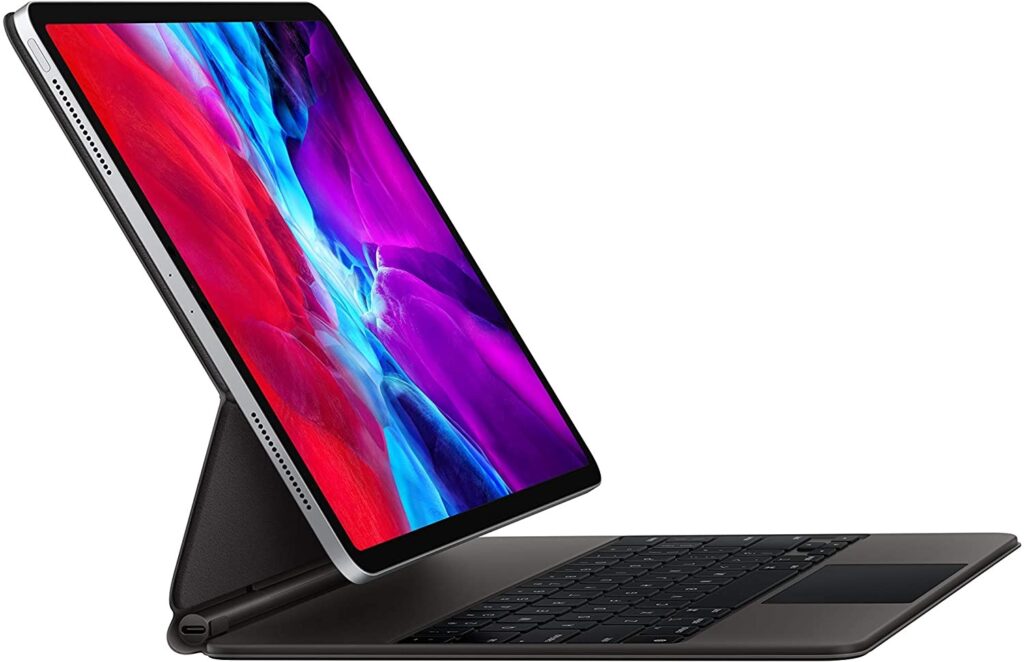
For years, I’ve wanted to be one of those people who can do all my work on an iPad.
The idea sounds so appealing: Instead of using a clunky laptop, just carry around Apple’s lightweight tablet with a snap-on keyboard and trackpad. You’ll get snappy performance, excellent battery life, fun apps, and fewer distractions. The way some other tech writers have pulled this off—including my Fast Company editor Harry McCracken and Macstories’ Federico Viticci—has always made me a bit envious.
Yet whenever I try to spend serious time computing on an iPad, even with a keyboard attached, I always come crawling back to my laptop or desktop. The iPad might be where I go to focus on a single task or enjoy a change in computing scenery, but traditional PCs are where my serious work happens. (Case in point: I drafted this story on an iPad, but edited and published the full newsletter on my Lenovo Yoga C940 laptop.)
Next month, Apple will reportedly announce new iPad Pro models, with faster processors, nicer-looking screens, and possibly a Thunderbolt connector to improve external monitor support. We’ll surely see a fresh round of debate over the iPad’s laptop replacement merits as a result, and I’ll almost certainly be tempted to give the idea yet another chance.
But as it stands, there are several reasons why I can only use my iPad as a temporary laptop stand-in:
The screen’s not big enough: If you’re used to working on a laptop, the 10- or 11-inch screens on most iPads will feel cramped while juggling lots of browser tabs or running two apps in split-screen mode. Even Apple’s 12.9-inch iPad Pro is on the small side for a laptop. (It’s also a big commitment to anti-laptop computing at $1,350 and up with a Magic Keyboard case.) Making the switch might be more tempting if Apple offered a cheaper variant—like it does for the smaller iPad Pro with the 10.9-inch iPad Air—or expanded the iPad Pro to even larger sizes.
File management can still be a hassle: Just yesterday, I had to download a large batch of images from Dropbox and upload them in a website called Airtable. In Windows, I’d be able to just save the ZIP file, open the file location straight from my browser, then drag it into Airtable. On my iPad, the Dropbox app wouldn’t let me download the files, so I had to delete the app, view the files through Dropbox’s website, save the folder, open Airtable, choose the Files app as my upload source, and finally select the file. File management still feels a bit like an afterthought in iOS, which means you can easily run into roadblocks like this.
The web is a second-class citizen: Apple likes to say that the iPad version of Safari is “desktop class,” meaning that it loads desktop sites instead of mobile versions and works well with a mouse or trackpad. But whenever I’m on my iPad, I miss having extensions like Simplify Gmail to improve Gmail’s web version (which I’d rather use than the mobile app), One Tab to stash tabs for later, the Camelizer to check Amazon price histories, and Tabliss to make my new tab page more productive. Also, Gmail’s website always opens in a browser tab instead of its own window on the iPad, even if you save it to your home screen. On a laptop, the browser is my most important power tool, but it’s just another app on the iPad.
Multitasking remains a challenge: While Apple offers plenty of ways to multitask on an iPad—including a split-screen mode, floating app windows, and an app dock you can bring up with a swipe—none of them feel particularly intuitive. Even after years of use, I still stumble over the exact set of swipes and taps required to invoke each method, and the lack of a persistent, non-disappearing app dock makes the simple act of switching apps feel slow. Focusing on a single app might be a benefit for some kinds of work, but it’s a hinderance for others.
It’s not exactly dockable: Unlike traditional laptops, the iPad isn’t really built to accommodate external displays. Plugging an iPad into a widescreen external monitor will leave black bars on either side of the screen, and you’ll get no extra room for apps, browser tabs, or other on-screen elements. You’ll also need an iPad with USB-C output (such as newer iPads Pro or the latest iPad Air), otherwise screen response will be unbearably laggy with an HDMI adapter. Perhaps the rumors of Thunderbolt support in Apple’s future iPads Pro suggest bigger changes to come, but for now external monitor use feels more like a hack than an intended use case.
Where iPads still make sense
None of this means that you can’t replace your laptop with an iPad, but doing so requires throwing out lots of expectations about how to get things done. To me, that means iPad still works best primarily as a tablet with occasional laptop benefits, rather than a device that serves both needs equally.
In the same way, I could write the exact inverse of this article about replacing your iPad with a convertible touchscreen laptop. While my Lenovo Yoga C940 laptop folds into tablet mode, I almost never use it that way, and I’d previously learned first-hand that Microsoft’s Surface isn’t great as a tablet either. For reading books, watching videos, or playing touchscreen games, the iPad’s instant-on, lightweight nature is still unparalleled.
Now, if someone could come up with a “Pro” level Chromebook tablet that runs Android and Linux apps—like a much fancier version of Lenovo’s Chromebook Duet—maybe we’d have a device that feels more like the best of both worlds. But that’s a whole other story.
Thanks for reading!
You’ve just read an excerpt from the March 30 issue of Advisorator, my weekly tech advice newsletter. Sign up for a free trial to get features, tips, news, and deals in your inbox every week.
Cheers,
Jared