

Six simple ways to protect your privacy
Plus: Chrome’s AI push, better drag-and-drop, and remembering to call someone back
 Jared Newman |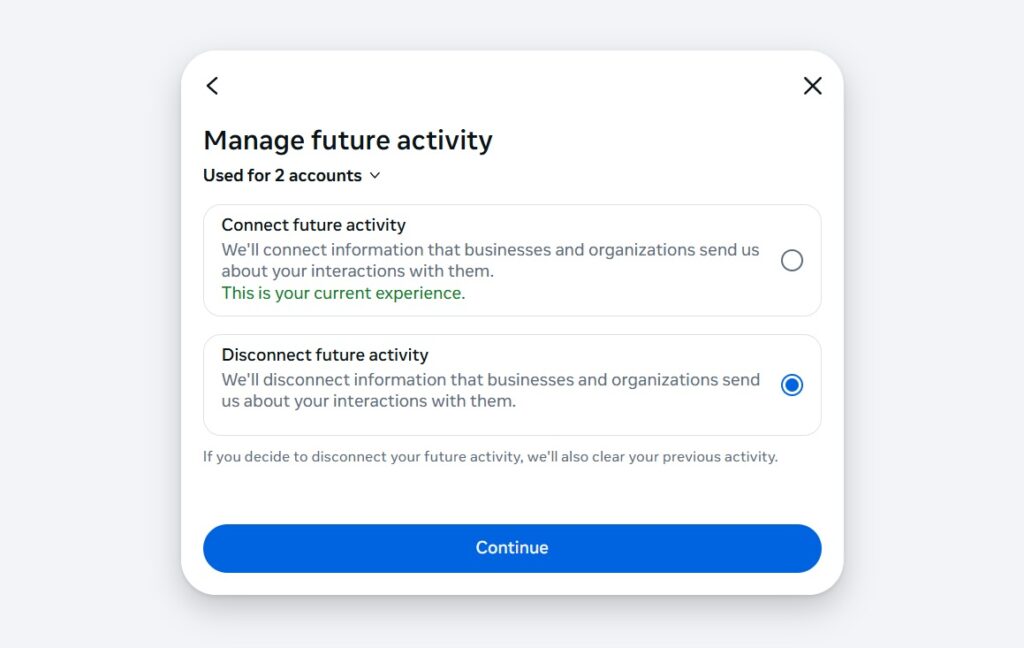
One of the most frustrating things I hear as a tech journalist is the idea that your phone is listening to everything you say.
I understand why that feeling is so pervasive: If you’re with a friend, and they tell you about a product you’d never heard of, and then you start seeing ads for that product on your phone, surreptitious recording is the simplest explanation.
But reality, companies like Google and Meta don’t have to record your conversations to achieve this level of invasiveness. They already know who you’re with from location data. They know what apps you’ve both been using, what websites you’ve been visiting, and what you’ve been searching for lately. Putting those data points together is far easier than processing live audio from billions of people.
Hence my frustration: If everyone just took a few minutes to shore up their privacy settings, that feeling of being secretly recorded would go away. Instead, the conspiracy theory covers up the real privacy invasion that’s happening in the background.
Okay, that’s my rant. Now, here’s what you can do about it.
(Disclosure: I stole this idea from my pal Rich DeMuro, who recently wrote his own list of phone settings to change in honor of Data Privacy Week, which I forgot was a thing.)
Stop Facebook from following you
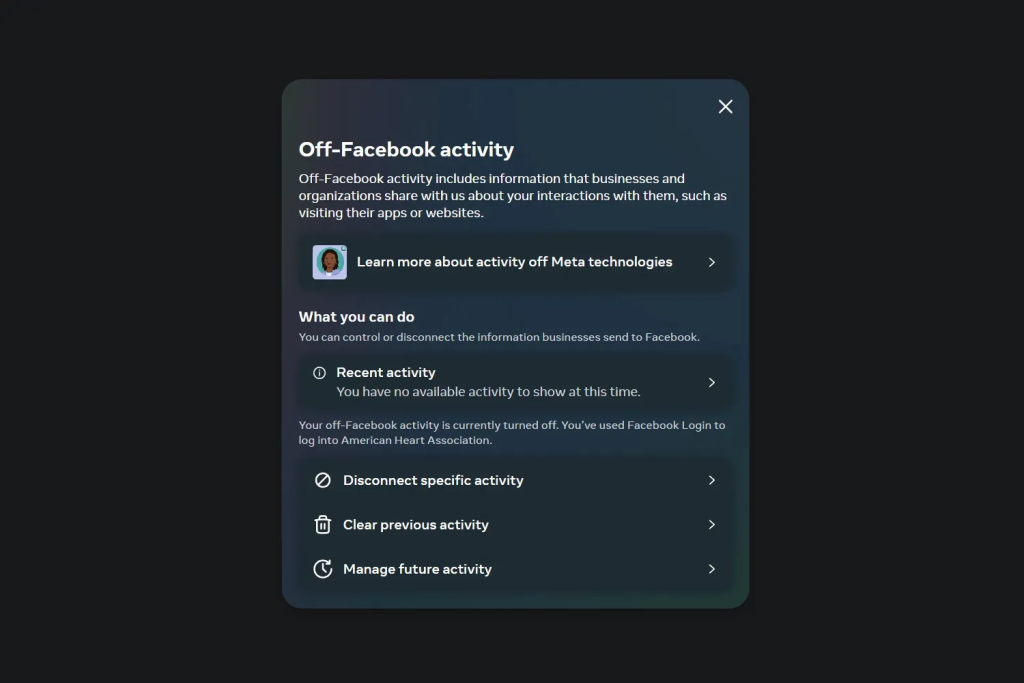
Because so many apps and websites share data with Facebook, it can see a lot of what you’re doing online even when you’re not using it directly. This is a major contributor to the feeling of being recorded, but you can stop it if you know where to look:
- In your web browser, head to facebook.com/off_facebook_activity.
- Select “Manage future activity,” then select “Disconnect future activity.” Continue through the confirmation steps.
Dive deeper: See my list of 11 Facebook settings to change over at the Advisorator website.
Turn off (or limit) Google’s activity tracking
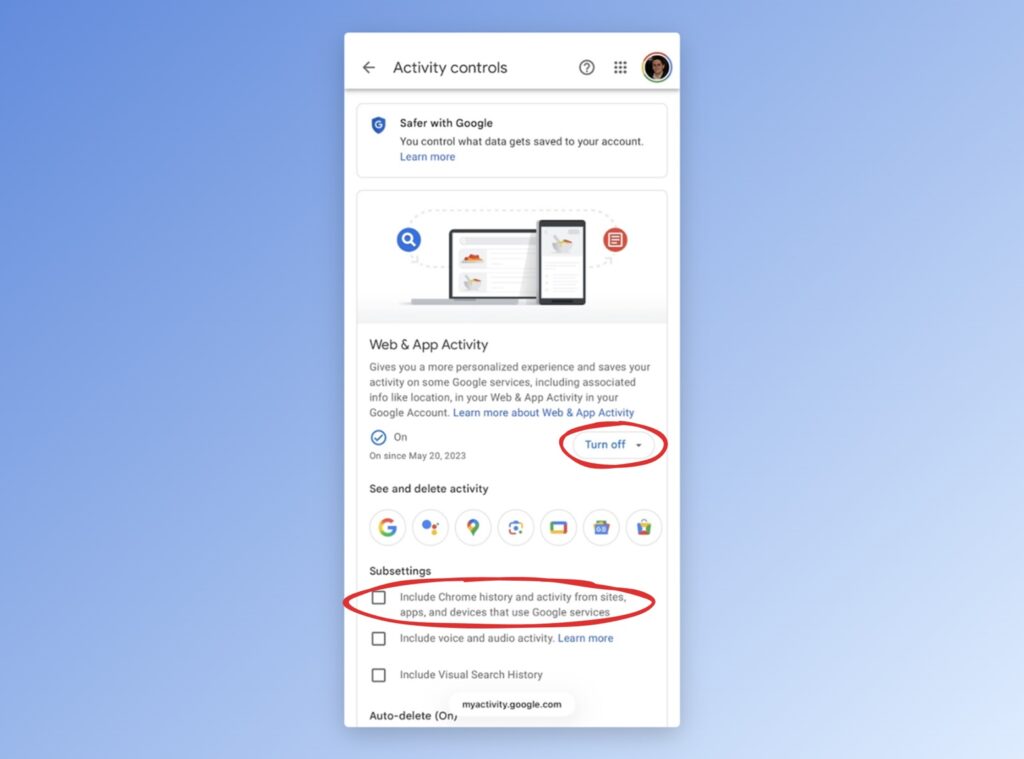
Much like Facebook, Google’s vast advertising empire allows it to follow you around the web, and its own array of apps and services provide a detailed record of what you’re doing online. Here’s the fix:
- Head to Google’s Web & App Activity page.
- Tap the “Saving activity” button.
- Uncheck all the options under “Subsettings,” but especially the one that tracks your Chrome history and activity on third-party sites. (You’ll still be able to sync Chrome’s tabs and history, even with this setting disabled.)
- Optionally click the “Turn off” button for your Web & App Activity at the top. This stops Google from keeping a record of how you use all its apps and services, with the trade-off that it can affect some personalized recommendations that Google’s apps provide.
Dive deeper: Learn about how I’m trying to limit my use of Google services overall.
Don’t let apps see your location unless you have to
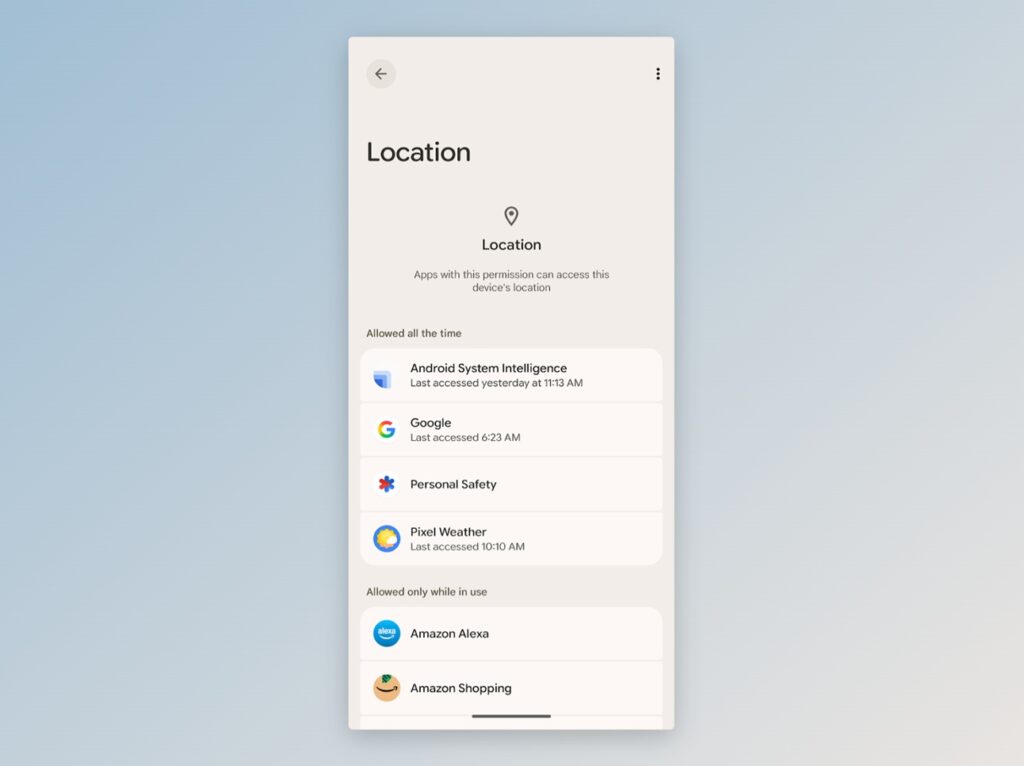
When you give Facebook or Instagram access to your location, they can see where you are any time you open the app. Same goes for any other app that requests location data. Don’t give this sensitive info away unless it’s essential for the app to function.
- On iOS: Head to Settings > Privacy & Security > Location Services, then set to “Never” for any apps that don’t need this information, or “Ask Next Time” for those that only need it occasionally.
- On Android: Head to Settings > Privacy & Security > Location access, then select “App location permissions.” Choose “Don’t allow” for any apps that don’t need this information, or “Ask every time” for those that only need it occasionally.
Bonus tip: For apps that don’t need your exact location—that is, most of them—turn off the “precise” toggle in their location settings.
Stop apps from sharing your data with other apps
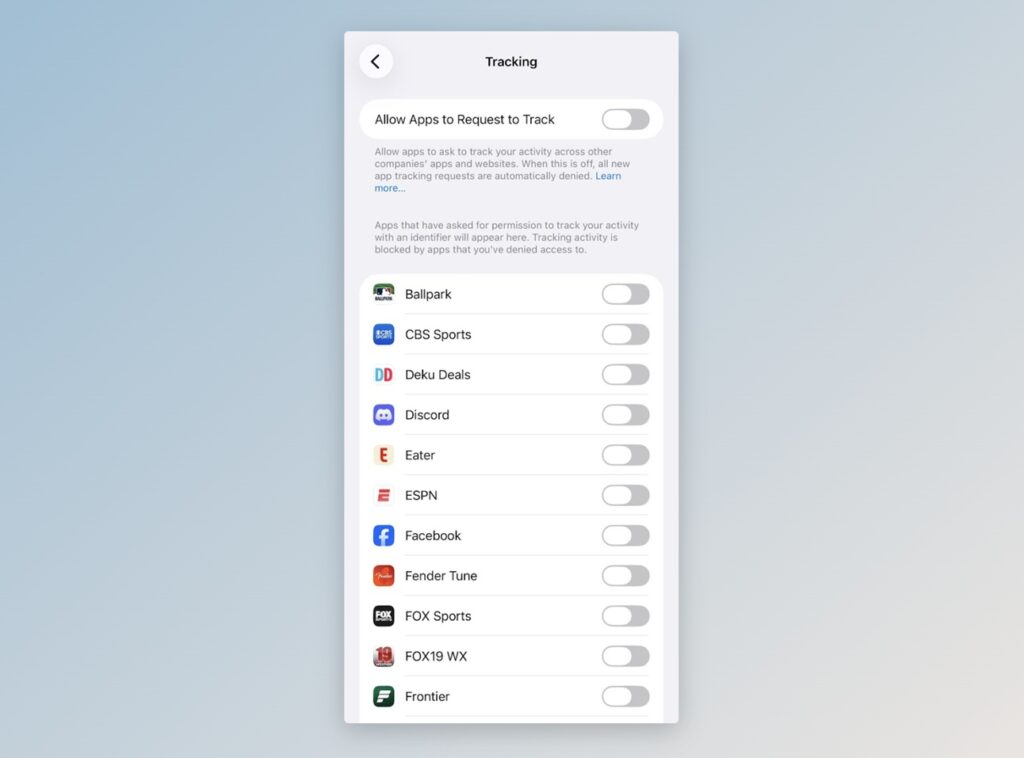
Your phone provides apps with unique identifier, allowing them to understand who you are and build up a profile of your behavior over time. It only takes a few seconds to delete this identifier from your phone:
- iOS: Head to Settings > Privacy & Security > Tracking. Disable “Allow Apps to Request to Track” and make sure all the individual app toggles are off.
- Android: In Settings, use the search bar to find your phone’s “Ads” menu, then tap “Delete advertising ID.” Then hit “Ad privacy” and turn off “Ad topics,” “App-suggested ads,” and “Ad measurement.”
Use an ad or tracker blocker in your web browser
Safari, Firefox, and Microsoft Edge all have built-in ways to limit what websites can learn about your browsing history. If you want stronger protections while hiding ads on the pages you visit—or you insist on using Google Chrome—consider an ad-blocking extension such as uBlock Origin Lite or a browser with built-in ad blocking, such as Vivaldi or Brave.
Dive deeper: I just wrote a whole guide about what to know before using an ad blocker, including some common pitfalls and ways to make the most of them.
Hide your personal info from Google search
Looking up someone’s address and phone number is trivially easy due to a proliferation of people search sites that source the data from public records. Thankfully Google offers an easy way to hide those pages from its search results:
- Head to Google’s “Results about you” page and sign into your account. (You can’t remove your personal info without a Google account.)
- Hit “Get Started,” then add your name, address, phone number, and email when prompted.
- Confirm that you want to get notified via email when Google finds your personal info in search results.
Within hours, you’ll start getting “Your personal info found on Google Search” emails from Google, with a link to remove them. You can also manually search for your personal info on Google, tap the ⋮ vertical ellipses button next to an offending result, and hit “Remove result.”
This will not remove your personal info from the web. It just won’t show up when people search for it on Google. If you want to delete your data from people search sites directly, I have a guide for that too.
News in brief
Chrome’s AI push: Google’s trying to make its Gemini AI assistant more noticeable in the desktop Chrome browser, moving it from a pop-up menu in the top-left corner to a sidebar that runs down the right side of the screen. There’s also a feature coming that will let AI navigate through web pages on your behalf, though it’ll require a $20 per month Gemini AI Pro or higher subscription. We’ve already seen these kinds of features from other AI browsers, but none with the market share that Chrome has.
Vivaldi’s new split-screen trick: Meanwhile, I got a press release from Vivaldi last week saying that it was “dropping a middle finger” to AI browsers by focusing on features that aren’t AI-related. Most notably, you can now drag a tab to either side of the browser window to open it in split-screen mode.
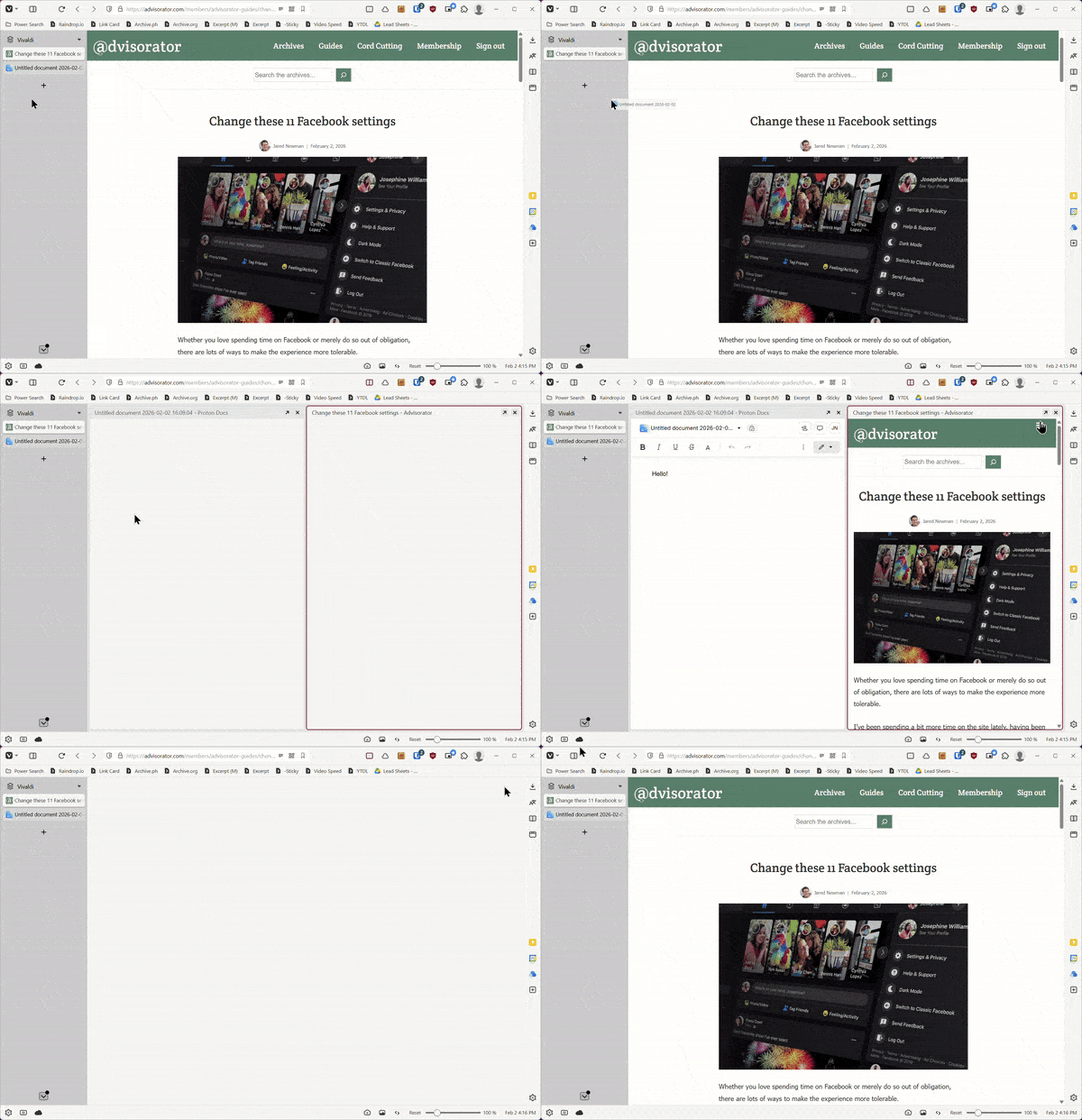
The AI rhetoric is a little tiresome—Vivaldi should define itself by what it is, not what it isn’t—but I still appreciate thoughtful features like this. They’re part of why Vivaldi is still my favorite browser.
Other notable news and reads:
- Google’s new $8 per month Gemini subscription has higher usage limits and 200 GB of cloud storage, which costs $3 per month on its own. (I’m still trying not to pay for any of these.)
- Microsoft promises to spend time fixing Windows 11 this year.
- It’s also reportedly rethinking all those Copilot AI features no one asked for.
- Mozilla says you’ll be able to turn its AI features off with one button soon.
- Yahoo gets into AI web search with Scout. You can try it here.
- Matt Gemmell on Apple: “Heading for bankruptcy once more, in every sense except the financial.”
- I was impressed with Asus’ dual-screen laptop at CES, so it’s nice to see the positive real-world reviews.
Tip of the week
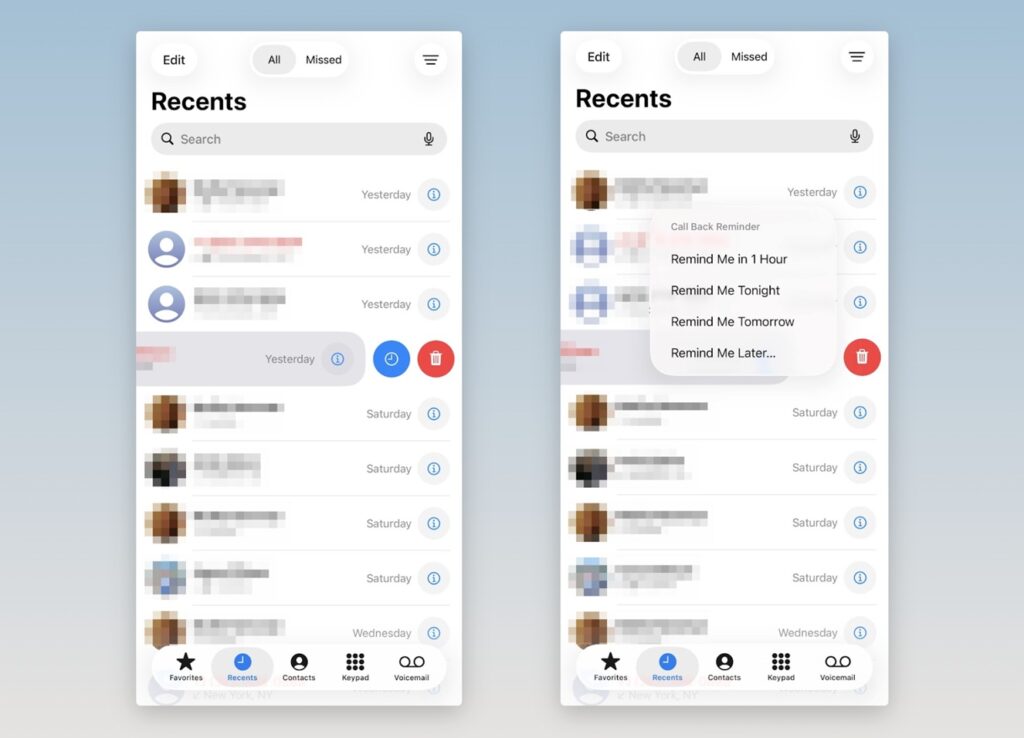
iPhone callback reminders: Like John Gruber, I did not realize until reading this Tidbits story that you can remind yourself to call someone back later directly from the iPhone’s recent calls list:
- Swipe slightly left on any number in your recent call list until you see the blue timer icon. (Don’t swipe so far that the red delete icon takes over, as that’ll remove the call from your history.)
- Tap the blue icon, then choose a reminder time.
When you set a callback reminder, it’ll appear in Apple’s Reminders app, and you’ll get a notification when the callback time arrives. To set an alarm instead of a notification, just mark the task as “urgent” in the Reminders app.
I’m not aware of similar functionality on Android, but my pal JR Raphael points out that you can set up automatic missed call reminders with a free app called Prof Reminder.
Try these apps
Drag and drop assistance: Dropover is a long-running Mac app that makes files easier to drag and drop. While clicking and holding on a file, shake your cursor until the Dropover window appears, then drop your file into it. Now you can freely click around on your Mac and drag the file over when you’re ready.
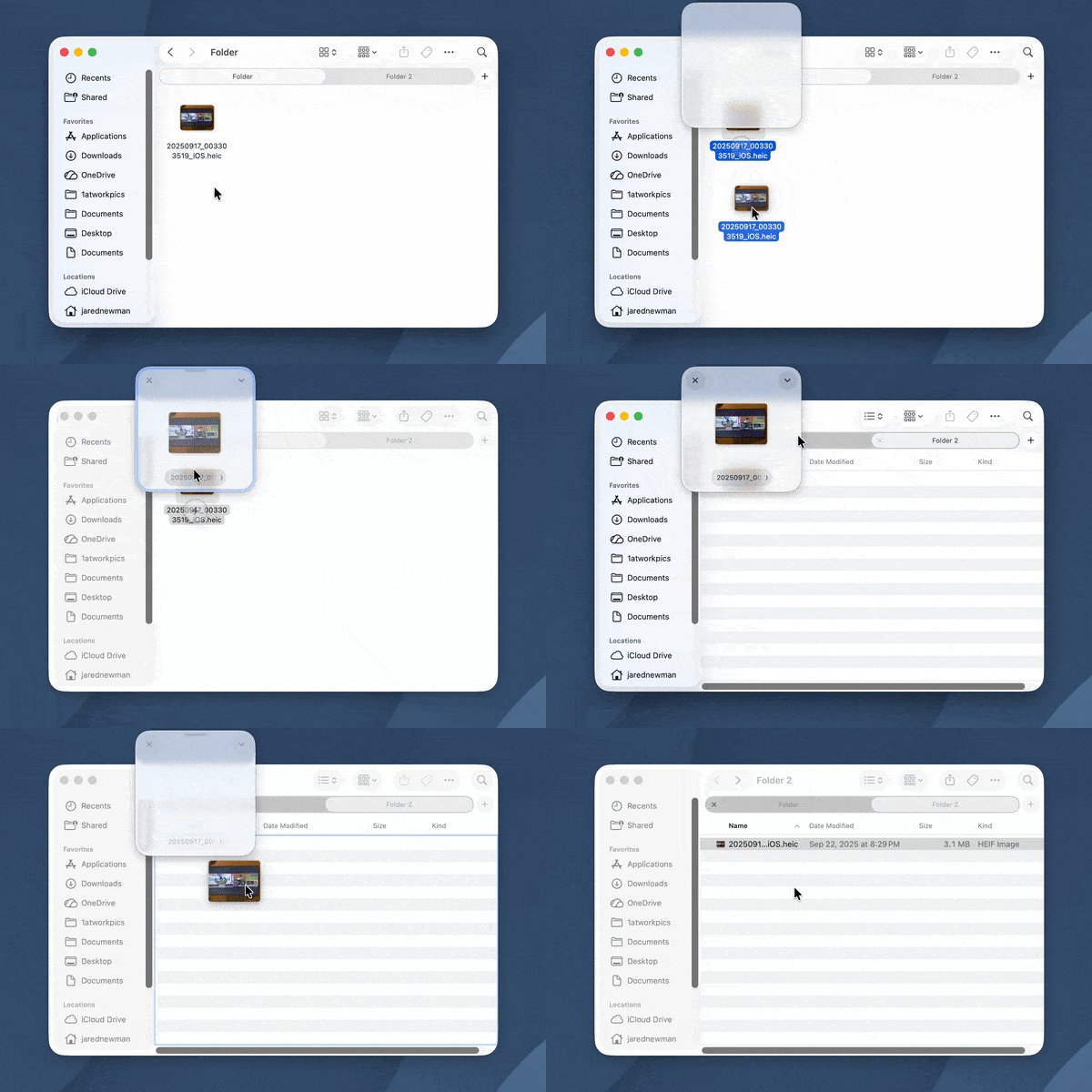
Dropover is free to try for 14 days, then it’s a $7 one-time purchase. If you want a free, open-source alternative with fewer fancy features, check out ShakePin instead.
What about Windows? Holdem is a free, open-source shelf app inspired by Dropover, with one important distinction: After you move a file, you must hold Shift while dragging the file to its destination. Otherwise, a copy will remain in the original location.
Spend wisely
Here are some notable deals I’m seeing this morning:
- Apple’s third-gen AirPods Pro hit a record-low $184 from Verizon. You needn’t be a Verizon customer to buy them.
- The Apple Watch Series 11 returns to $299 (42mm) or $329 (46mm). Best Buy has open-box options for even less.
- Best Buy has the 11-inch M5 iPad Pro with 512 GB of storage for $856 open-box, $340 off the new price.
- B&H takes $300 off the 14-inch M5 MacBook Pro with 24 GB of RAM.
- Roku’s Streaming Stick drops to $16, a buck more than Black Friday.
- Plug a phone or tablet into your TV and charge it at the same time with this $16 Anker adapter. (Charger not included.
- Best Buy clears out the Pixel Watch 3 LTE for $141 (41mm) or $161 (45mm), less than half the price of the Pixel Watch 4.
Consider an Advisorator membership
If you enjoyed this week’s story on simple ways to protect your privacy, please consider becoming an Advisorator member. You’ll get in-depth features like it every week, plus helpful online guides, forum access, and additional deals.
Thanks for reading! Catch you next week.
Until then,
Jared
Did someone share this newsletter with you? Sign up to get it every Tuesday.