Advisorator Free: Speed reading through YouTube

Speed reading through YouTube

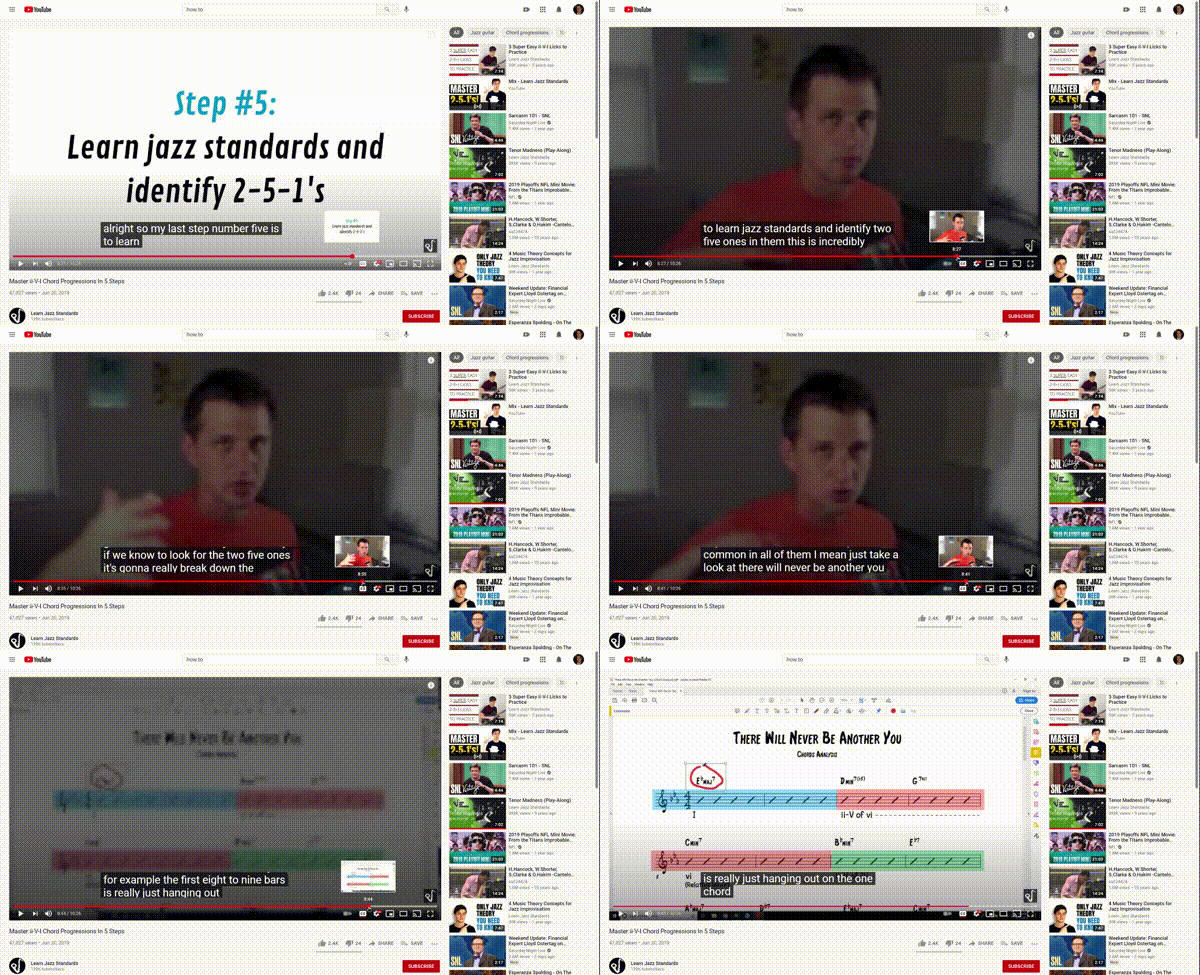
Have you ever looked up something online, only to find that the best answer is tucked inside a 10- or 15-minute YouTube video? Lately I’ve come up with a way to find the relevant portion without having to sit through the whole thing.
Once the video starts playing, hit the “CC” button to turn on closed captions. Then, on the desktop YouTube site, drag the video playback bar to gradually scroll through the video. The closed captions will advance as you scroll, so you can skim through the text and find what you’re looking for.
This gets a little trickier on mobile devices, since you can’t advance the captions without letting go of the video slider. To work around this, tap on your profile picture in the YouTube app, then head to Settings > General > Double Tap to Seek. Change the amount to 5, then return to the video. Now, when you double-tap the left or right side of the video, it’ll skip ahead in five-second increments, so you can use the captions to find what you need. (Alternatively, you can use YouTube’s mobile website, which works more like the desktop version. Just hit the gear icon at the top of any video for the option to enable closed captions.)
While you’re at it, keep in mind the Wadsworth Constant, which dictates that the first 30% of any YouTube video contains no useful information. You’d be surprised at how often this holds true.
The latest from PCWorld
(Sorry folks, due to an editing snafu, this section got garbled, so I’m resending with the proper text.) Sometimes the best software tools are built right into the operating system you’re already using.
Case in point is Windows 10’s Clipboard History tool, which lets you store multiple items at a time for copying and pasting. While there’s no shortage of third-party clipboard managers for Windows—many of which cost money—Microsoft’s own option might be all you need. It’s especially handy if you’re often juggling a lot of text or images, and find yourself re-copying and pasting the same items repeatedly.
I first wrote about how to use Clipboard History in an earlier issue of Advisorator for paid subscribers. Now you can check out a version of that story over at PCWorld.
Spend wisely
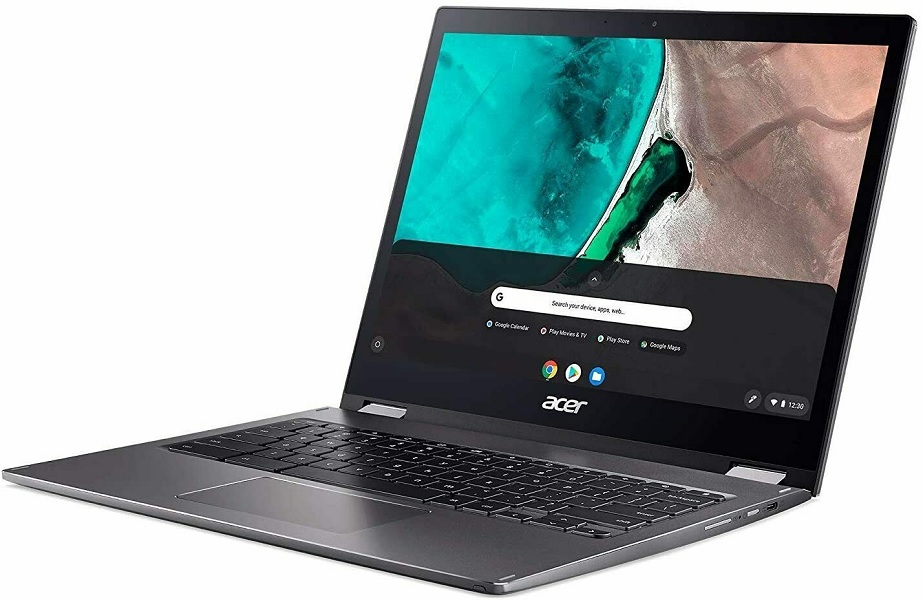
Look for recommendations on the best Chromebook, and you’ll likely see the Acer Spin 713 come up. It has a 13.5-inch touchscreen with a 3:2 aspect ratio, which gives you more vertical space while browsing web pages, plus it can flip around into tablet mode. Its specs are also on the high end for ChromeOS, including a 10th-gen Intel Core-i5 processor, 8 GB of RAM, and 128 GB of storage, and it has an HDMI port for connecting to external displays. Reviews have been glowing.
While the Spin 713 debuted at $629, eBay has a refurbished model for $401 when you use the code PICKCR5 at checkout. If you’re interested in a computer that mainly runs the Chrome browser, Android apps, and perhaps the occasional Linux program, this might be as good as it gets.
Thanks for reading!
As a reminder, you’re reading the free version of Advisorator, which I’m currently sending out every two weeks. Here are a handful things you missed from the paid newsletter that goes out every Tuesday morning:
- Tips on securing your most important digital documents
- Slick and simple tools for scheduling and habit-tracking
- A way to eliminate annoying website chatbots
- A spiritual successor to what used to be one of my favorite websites
- Perspective on the latest tech news
- Roundups of even more tech deals
In addition to the weekly newsletter, members get additional deal alert emails to help save money on the latest gadgets, personalized advice from yours truly, and an online archive of every previous Advisorator newsletter. Sign up for a four-week free trial, and I’ll send the latest issues your way!
Until next time,
Jared