
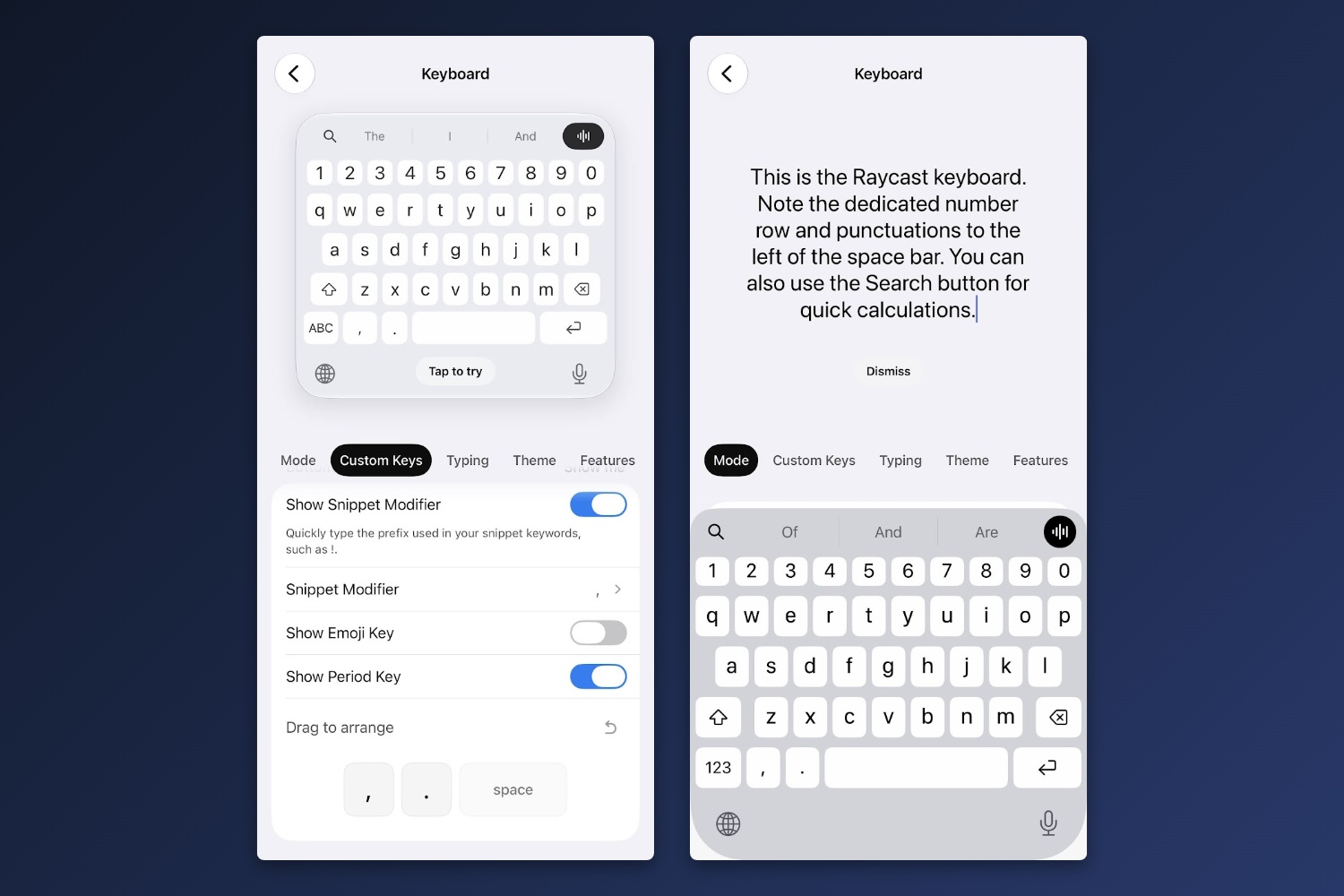
I've written at length about Raycast, whose Windows and Mac apps offer a suite of powerful keyboard-based commands. Now, the iPhone version includes a full keyboard as well, and among its many features is a dedicated row for numbers.
Not having a number row is my biggest pet peeve with the iPhone's built-in keyboard, so now I'm using Raycast instead. The Raycast keyboard has some other helpful features as well, like haptic feedback instead of audible taps and the ability to add a comma or apostrophe next to the keyboard.
By default, though, Raycast has a bunch of AI features and other gunk you may not want. Here's how I've set it up to get that stuff out of the way:
- Open the Raycast app and go to "Keyboard."
- Mode tab: Select "Primary."
- Custom Keys tab: Change Leading Button to "Search." Disable Dictation Button. Disable "Show Action Row." Change "Snippet Modifier" to a comma. Enable "Show Period Key." Drag the period to the left of the space bar.
- Typing tab: Enable "Dedicated Number Row." Change "Key Haptic Feedback" to Medium. Disable "Key Sound."
- Features tab: Enable "Show iOS Dictation Button."
To make sure you're always using the Raycast keyboard, head to Settings > General > Keyboard > Keyboards. Hit the edit button, drag Raycast to the top of the list, and consider deleting the standard keyboard. (I kept the one for Emoji.) You can always use "Add New Keyboard" to add it back.
The one actual Raycast feature I'm using is Snippets, which can turn short strings of characters into a longer ones. For instance, you can make a simple snippet that enters your email address when you type "@@" or a more involved one that fills out an entire email template. If you use Raycast on Windows or Mac, signing up for a one-week Pro trial in the iPhone lets you sync all your desktop snippets over. Just make sure to cancel afterwards if you don't actually need the subscription.