
Stop your phone from waking you at night

Put your phone to sleep the proper way
Plus: My calendar event creator, a slew of Sonos news, and laptop charger deals
 Jared Newman |
 Hey there! I’m Jared Newman, a longtime tech journalist, and this is Advisorator, my weekly tech advice newsletter. Did someone share this newsletter with you? Sign up to get it every Tuesday.
You’re reading the free edition. Paying members get in-depth features and guides each week, plus access to my community forum. Learn more here.
Calendar Event Creator
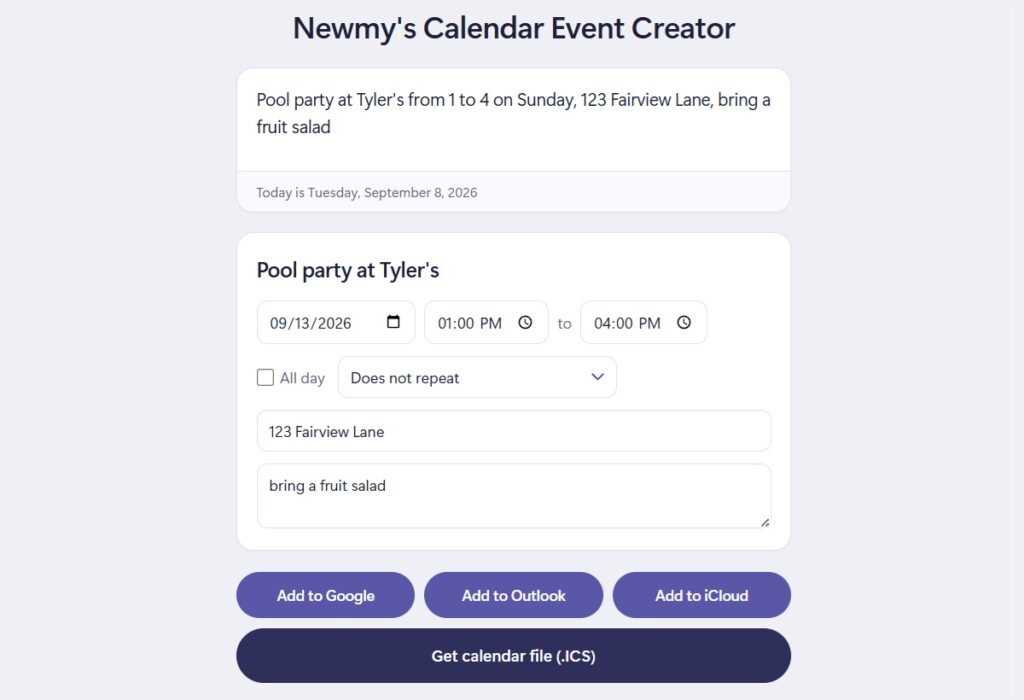
Surely I’m not the only one who finds calendar event creation to be overly tedious. Instead of fiddling with time boxes and text fields in Google Calendar, I’ve always wanted to just type all the details on a single line, click a button, and be done.
So, here’s a little tool I made with Claude for doing that. Type in a phrase like “Pool party at Tyler’s from 1 to 4 on Sunday, 123 Fairview Lane, bring a fruit salad,” and it’ll automatically fill out the date, time, location, and notes fields. (I’m also working on a way to upload printed invitations and screenshots, but the results are still too inconsistent to share.)
Once the details are in place, use the “Add to Google” or “Add to Outlook” buttons to send the info to a new event page in either app, with all the fields filled out. Alternatively, use the “Add to iCloud” or “Get calendar file” buttons to generate an .ICS file, which will add the event to your device’s default calendar app when you open it.
The Calendar Event Creator is completely free to use, and all the event processing happens offline, in your web browser. I don’t collect any information about what you type in or how you use the site. If you’d rather maintain your own copy, just download the HTML file, modify as you wish, and run it directly from your computer or your own website.
News in brief
A slew of Sonos news: Sonos is still trying to atone for a disastrous 2024 app redesign that drove away customers and sent its CEO packing. Last week, the company announced that it’s once again overhauling its app with a simpler design and some new automation features, including Siri integration and hooks into various AI tools. Sonos is also debuting a new AI assistant that’s supposed to be better at handling natural language requests on speakers with voice control. A new Beam Ultra soundbar and Ace Ultra headphones are coming as well, with the latter letting users pass music back and forth with its speakers. This all comes with a bunch of rebranding, including the name “Sonos 27” for the software and “Sonos Fabric” for multi-room and multi-speaker connectivity.
I started investing in some Sonos gear several years ago (Beam soundbar in the living room, Move speaker in the kitchen, Roam speaker for travel) but backed off as the company lost its way. I’ve also just found it easier to control those speakers via Apple’s AirPlay system and have been intrigued by rival Bose’s approach of leaning into AirPlay and Chromecast while not having an app at all. The one thing Sonos could do to pull me back in would be to let me play music from my Plex server with voice control, but it seems all the fancy new AI still doesn’t make that possible.
More notable news and reads:
- Speaking of Plex music servers, the Plexamp app gets a total overhaul.
- Roku starts selling its own OLED TVs, starting at $999 for a 55-inch set.
- Microsoft announces a bloat-free version of Windows, but it’s for AI developers, not the rest of us.
- The venerable audio editing app Audacity gets a new look.
- Acer revives the Packard Bell brand for laptops and gadgets. (Previously, it tried doing the same with Gateway.)
- Good piece from The Verge on why AI-generated food photos look so unappetizing.
Spend wisely
This section of the newsletter may include affiliate links, which earn me a commission if you wind up purchasing something.
Not much excitement on the deal front this morning, but here’s what I ‘ve found:
- Best Buy Insignia USB-C chargers: 100W for $15, 140W for $20.
- Nuphy’s low-profile Air75 mechanical keyboard falls to $70, about $24 off the street price.
- Second-gen AirTags are still $80 for a four-pack.
- New low for the JBL Bar 700MK2 7.1 surround system, at $550.
Stop your phone from waking you at night
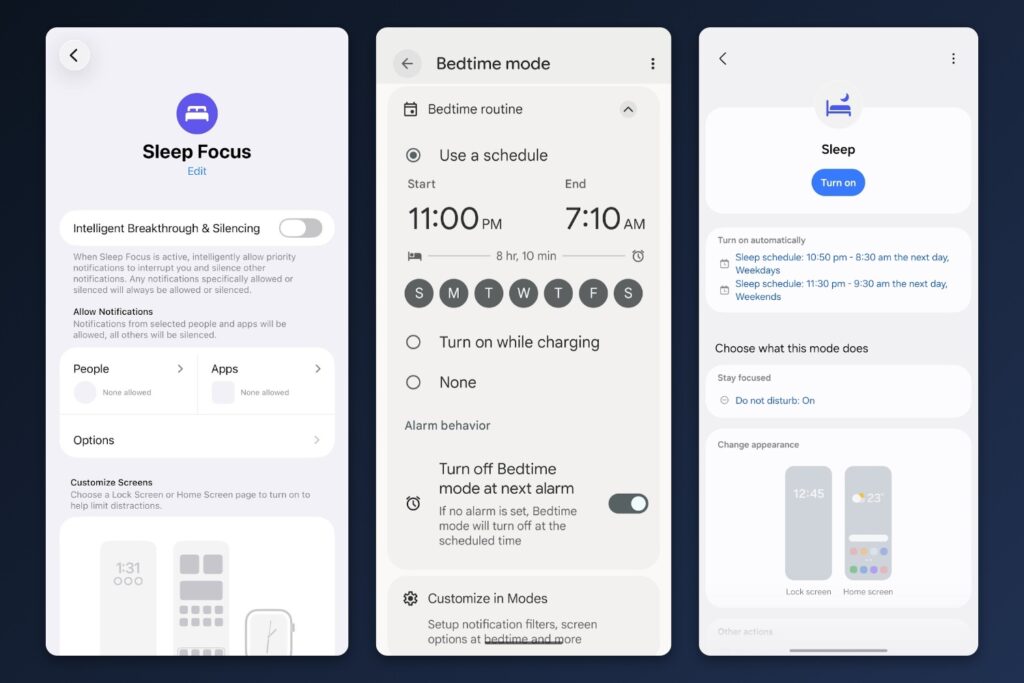
If your phone has ever woken you up in the middle of the night for no good reason, this guide is for you.
I know from experience (namely via the person sleeping next to me) that not everyone is on top of all the different ways to silence your phone’s notifications, though I completely understand why. While most phones used to offer a single “Do Not Disturb” mode, now you have to navigate all kinds of complex automation menus just to make your phone shut up on a nightly basis. While I wish the system was simpler, it’s still important to grapple with if you value a good night’s sleep.
Over at the Advisorator website, I’ve put together a guide to setting up your phone’s sleep mode the right way, with separate instructions for iPhones and Android phones. You’ll learn to set up a nightly schedule that blocks unwanted notifications, relaxes your eyes with a black-and-white screen mode, and sets a morning alarm that brings your notifications back, all while still alerting you to any actual emergencies.
Get your phone’s sleep mode in order →
This guide is for Advisorator’s paying members. Sign up for as little as $5 for a month to read it and get more in-depth advice from me each week. You’ll also gain access to my friendly community forum for getting your tech questions answered. Thank you!
That’s all for now. Catch you next week.
– Jared
Did someone share this newsletter with you? Sign up to get it every Tuesday.