
Advisorator Free: iOS 15 tricks to try

Tip of the moment: iOS 15 tricks to try

Hey folks, it’s been a while since I sent out a free edition of Advisorator. But with yesterday’s launch of iOS 15, it’s the perfect time to share some of my favorite tricks so far.
Apple isn’t pushing the upgrade too hard just yet—to get it, you must visit Settings > General > Software Update, then hit “Upgrade to iOS 15” at the very bottom of the screen—but I assume that’ll change as the company irons out early issues. But if you do want to upgrade, it’s available on devices dating back to the iPhone 6s, original iPhone SE, and second-generation iPad Air.
Here are some things to check out once you do:
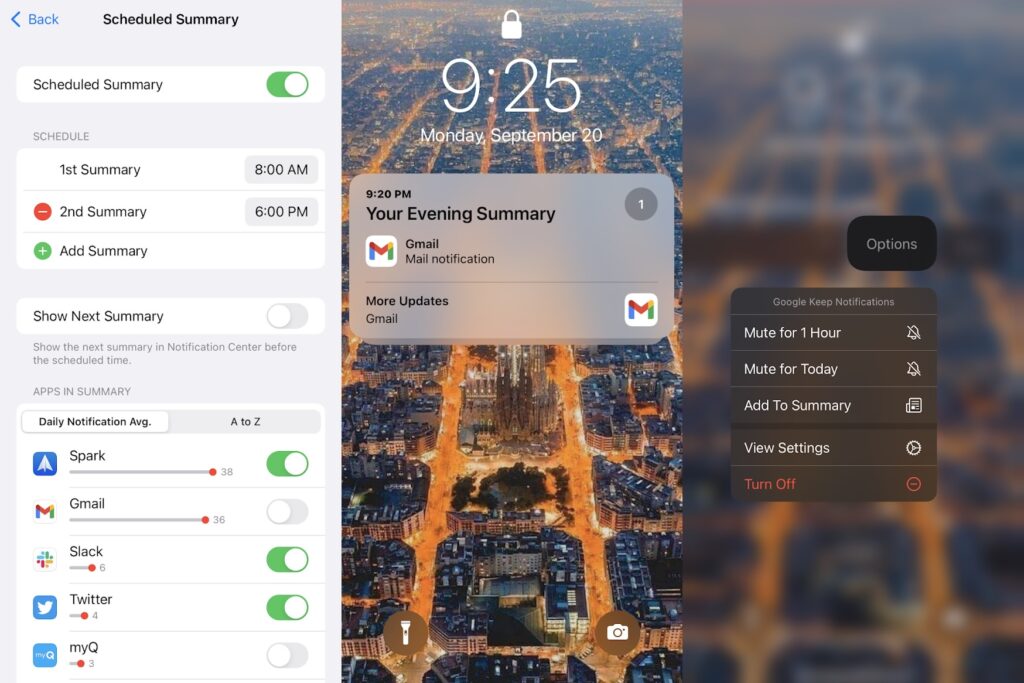
Bundle your notifications: Instead of getting constantly distracted by notifications, try scheduling them to arrive in batches throughout the day. To set this up, head to Settings > Notifications > Scheduled Summary, then flip the toggle on. From here, you can set up times at which your bundled notifications will appear on the lock screen, then select which ones go into the bundle instead of arriving immediately.
Mute a notification: With iOS 15, you can now silence an individual app’s alerts on a temporary basis. Swipe left on the notification and select “Options,” where you’ll find “Mute for 1 Hour” and “Mute for Today” settings. You can also use this same menu to add or remove the notification from your bundle, as described above.
Voice search in Safari: Select the address bar in Safari, and you’ll notice a new microphone icon on the right side. Tap on it to execute a quick voice search using your default web search engine.
Invite Android and Windows friends to Facetime: Launch Facetime in iOS 15, and you’ll see a new “Create Link” button. This brings up the iOS Share menu, where you can copy an invite link, send it to a contact, or share it inside other apps. Anyone who receives this link can then join the call through their web browser—once you admit them from a waiting room—even on an Android phone or a Windows PC. To invite people mid-call, tap on “Waiting for Others” and select “Add People.”
A couple caveats: You can’t generate invite links mid-call with individual Facetime users, and you can’t use features like Memoji and color filters via the web. Still, it beats leaving non-Apple friends out of the conversation entirely.
Blur your Facetime background: While you’re chatting, try tapping on your face, then pressing the little person icon to blur your background. It’s a table-stakes video chat feature in apps like Zoom and Google Meet, but one that’s nice to finally have in Facetime as well.
The latest from PCWorld and elsewhere
Over at PCWorld, I’ve had a couple syndicated Advisorator columns arrive my last dispatch. The first is all about what to look for in a mechanical keyboard. Those who own a mechanical keyboard or two know it can easily become a rabbit hole, but with a bit of planning, you can treat yourself to a much nicer device for typing or gaming.
I also rounded up some of my favorite tab search tricks, so you can looked through the tabs you’ve already opened instead of opening yet another duplicate and contributing to tab overload. Definitely try Tab Hare if you haven’t already.
I’d also like to share a handful of stories of mine that recently went up over at Fast Company:
- How to take screenshots or screen recordings on any device.
- This MacOS browser will change how you think about tabs.
- A new fitness band called Whoop hides a major battery breakthrough.
- Not strictly tech related, but read about how home appliance makers restrict repairs and enable more e-waste.
Spend wisely
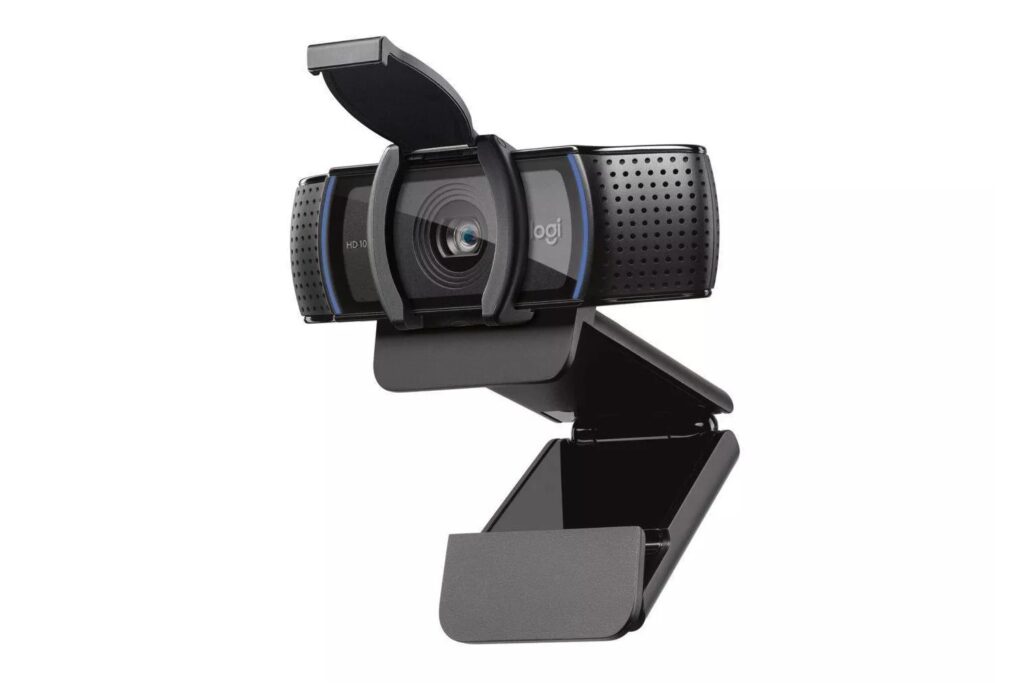
Target Circle members can save 10% on a single electronics item, with some notable exceptions. (No Apple, Google, Sonos, or Sony products, among others.) Logitech’s C920s webcam is a good candidate at $55, as is the Roku Ultra at $63.
More tech advice, without the clutter
If you like what you’re reading here, there’s lots more to learn in the full weekly edition of Advisorator.
This week, for instance, I made a chart comparing every unlimited data plan from AT&T, T-Mobile, and Verizon. I also compared the deals they’re offering on new iPhones and what you need to know before committing. And of course, I also summarized Apple’s latest iPhone, iPad, and Apple Watch news.
In recent weeks, I’ve also covered the importance of tech backup plans, discovered some search superpowers, and offered essential YouTube Tips from one of the sharpest writers covering Google today.
And to make up for not sending any tips in a while, here’s a discount just for this mailing list: Sign up by Thursday, September 23, and get your first three months for $9, or your first year for $40. Use those links to sign up, for hit the button below and use the codes QUARTERLYDEAL or YEARLYDEAL at checkout.
Until next time,
Jared