
Tip of the week: Pesky browser pop-ups begone

Welcome to Advisorator’s Tip of the Week, helping you learn something new from the tech world every Tuesday.
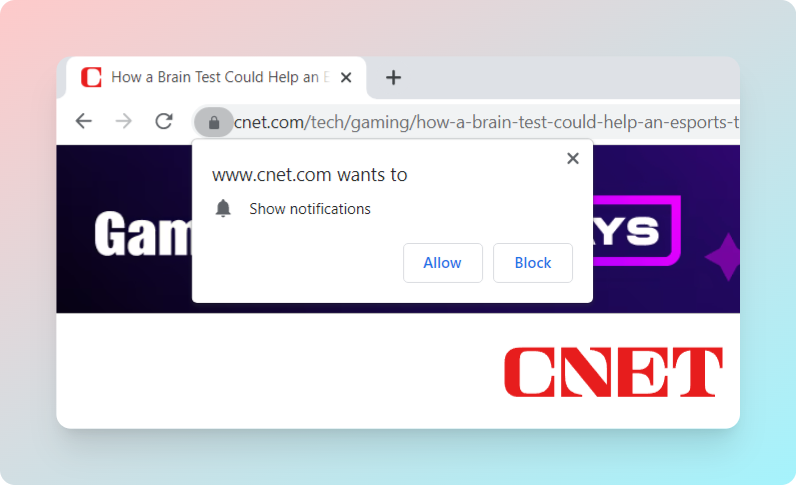
Earlier this month, Google added a novel way to block websites’ annoying notification requests. Chrome will now automatically hide those pop-up prompts if its machine learning algorithms predict that you might be bothered by them. This will be indicated through a “Notifications Blocked” button on the left side of the address bar.
It’s a neat idea, but based on my experience so far, it’s still better to just turn off notification prompts entirely. To do this in Chrome, head to Settings > Privacy & Security > Site Settings > Notifications, then select “Don’t Allow.”
Here’s how to block notification prompts in other browsers:
- Safari: Under Safari > Preferences, click the “Websites” tab and the “Notifications” section, then uncheck “Allow websites to ask for permission to send notifications.”
- Firefox: Under Settings > Privacy & Security, scroll down to “Permissions,” hit the Settings button next to “Notifications,” and check the “Block new requests” box.
- Microsoft Edge: Under Settings > Cookies & site permissions, click on “Notifications” and uncheck “Ask before sending.”
- Vivaldi: Under Settings > Privacy, find the Notifications dropdown and select “Block.”
From these same menus, you’ll also be able to revoke notification privileges from websites you’ve previously approved. The minute or two it takes to adjust these settings is well worth the more serene browsing experience you’ll get in return.
Thanks for reading!
As always, I’d really appreciate if you shared a link to this issue or the sign-up page with a friend. And if you have any thoughts on what to cover next, I’d love to hear them!
Until next week,
Jared