
Tip of the week: Rearrange Google’s app launcher


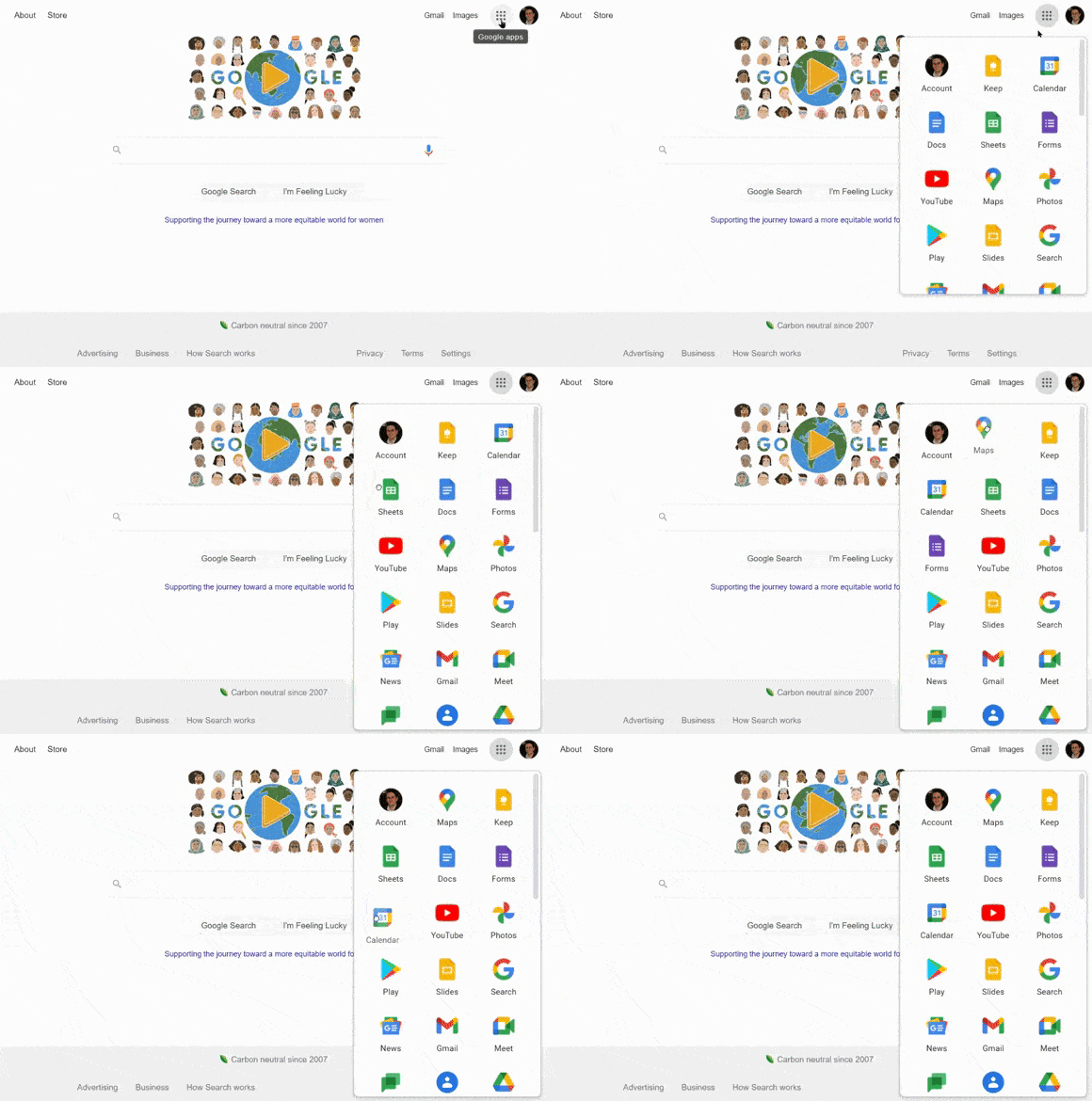
You know the little 9×9 dot icon that appears at the top-right corner of every Google website, which brings up a mini launcher for Google apps such as Gmail and Calendar? I just realized, more than eight years the launcher’s debut, that you can rearrange the order of those apps just by clicking and dragging.
This only works if you’re signed into a Google account—otherwise the apps will be stuck in place—but it means that you can move your most frequently-used apps to the top off the list for easy access, while demoting the ones you never touch. The order you choose will then automatically sync across all your devices.
Want more customization? A free Chrome extension called G App Launcher goes even further by providing hundreds of additional shortcuts. That means you can add less popular Google services such as Google Voice, set up quick actions such as drafting a new message in Gmail, or even create custom shortcuts to any website, including those outside of Google’s domain.
Once you’ve installed the extension, click the the gear icon at the top of the launcher to enter the customization menu. Shortcuts that you drag into the right-side panel will then appear inside the launcher, while the ones in the left panel will be hidden.
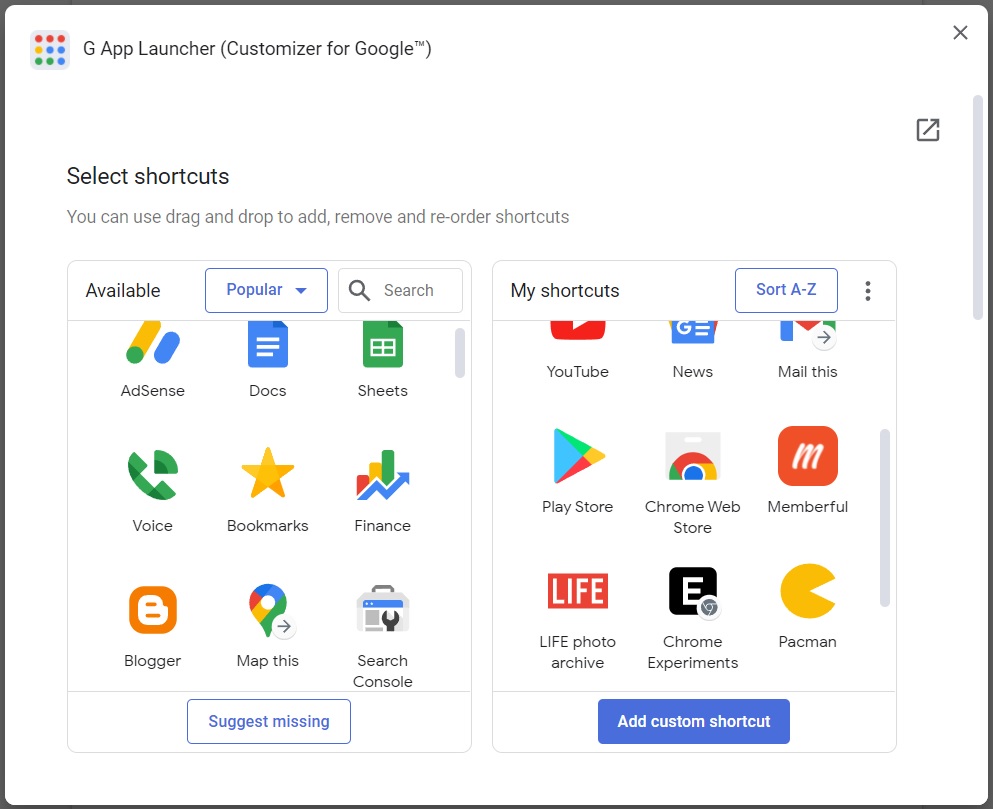
To add your own sites, click “Add custom shortcut” in the customization menu, then enter the site name and address. You can also add a custom icon by pasting the link to any image on the web.
G App Launcher does have two major differences from Google’s launcher: Clicking an icon will launch the site in a new tab instead of your current one. But if the app is already open in another tab, it’ll switch to that tab instead. I actually like that behavior even better.
(Hat tip to reader Tim C., who started me on this path by asking why Google’s launcher didn’t link to Google Voice in the first place.)
In this week’s issue for paid Advisorator subscribers, I wrote about why I don’t use built-in password managers, like the kind you find in Chrome, Microsoft Edge, and iOS (via iCloud Keychain). I’ve also got additional quick tips to try, plus some great deals on keyboards, iPads, and more. Sign up for a four-week free trial and I’ll send the latest full newsletter your way.
Thanks for reading! Catch you next week. – Jared