
Tip of the week: Use your computer from afar


This week’s tip comes in response to a question from Jim S., who asked about the best software for remotely accessing and controlling another computer.
While I haven’t tried every solution, I’ve been a happy Chrome Remote Desktop user for years. The free software from Google lets you control another computer from any web browser, or from the Chrome Remote Desktop app on iOS and Android, and I’ve found it to be both reliable and responsive.
I use the software to manage my Mac Mini’s Plex and Channels DVR servers when I’m not at home, and to remotely begin downloading games and other large files on my Windows desktop PC. You can also use Chrome Remote Desktop for tech support, accessing another person’s PC through a one-time access code. (Note that all of this requires the host computer to be turned on; you can’t use it to magically power up a laptop from afar.)
While you do need a Google account to use Chrome Remote Desktop, Google’s Chrome browser isn’t required.
To get started, just head to the Remote Desktop site on the computer you want to access remotely, download the software under “Set Up Remote Access,” then create a PIN, which you’ll need along with your Google account to use the computer from elsewhere. You can also head to the “Remote Support” tab to share your computer screen with another user, or vice versa.
If you’re using a web browser, Chrome Remote Desktop will feel just like controlling your actual computer, albeit with slightly more input lag. Click the little arrow on the right side of the screen, and you can adjust display options, set up keyboard shortcuts, and even directly transfer files between the two computers.
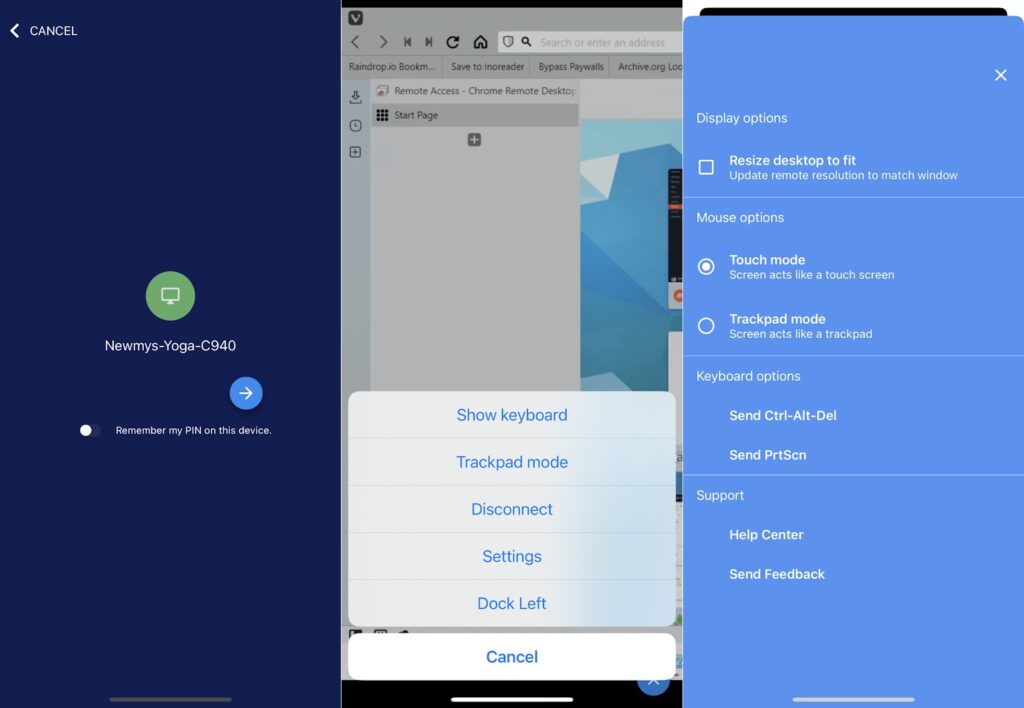
The mobile app, meanwhile, provides a touchscreen interface so you can simulate mouse clicks by tapping with one or two fingers. Alternatively, switching to “Trackpad Mode” lets you drag your finger to move your computer’s cursor around. Neither is an ideal way to control your computer, but they’ve gotten me out of numerous media server-related jams over the years, so I’m not complaining.
The latest from PCWorld
I’ve got another syndicated Advisorator column up at PCWorld, covering ways to delete duplicate photos on a Windows PC or Mac. It’s based on a newsletter I originally wrote in early 2021, borne from a need to finally clear out my messy OneDrive photo uploads folder.
If you enjoy in-depth advice like that and want to support my work, please consider a paid subscription. You’ll get an expanded version of this newsletter every Tuesday with original features, extra tips, and deals on the latest tech. (This week’s feature: 10 essential tips for your web browser.) Give it a try and get your first four weeks for free.
Thanks for reading! Got questions or comments on this newsletter? Just send me an email to get in touch.
Until next week,
Jared