|
Plus: New YouTube tricks and a source of peace and quiet Sharing face-off: iCloud vs. Google Photos |
Plus: Elon's Twitter takeover, a source of peace and quiet, and new tricks for YouTube |
If there’s one thing that really keeps me hooked on Google Photos, it’s sharing. |
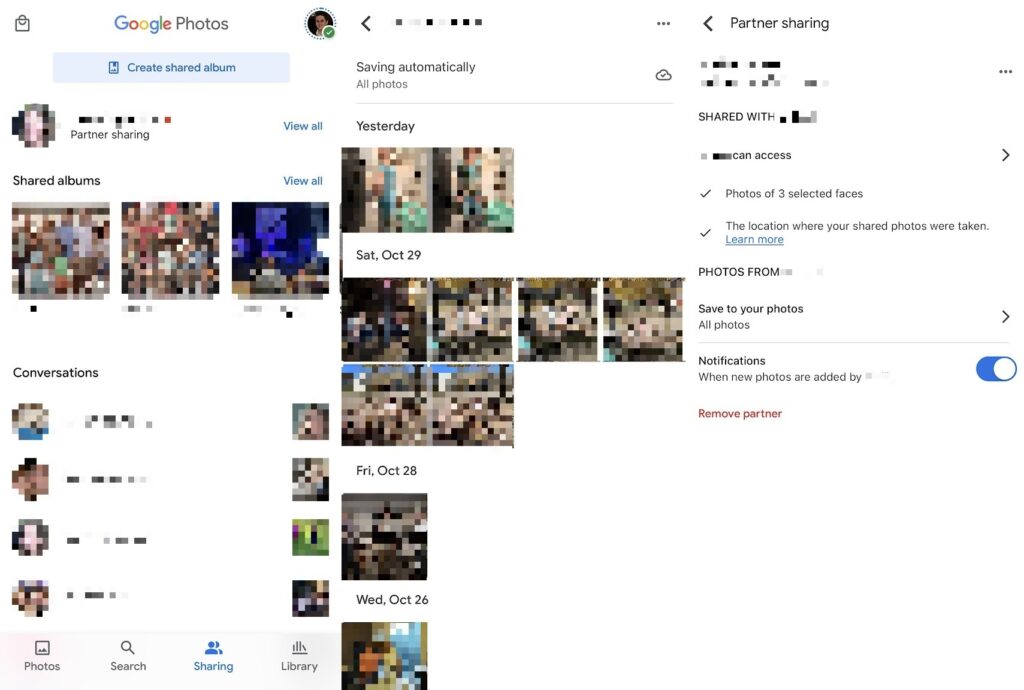
With Google’s Partner Sharing feature, any family photo I take automatically appears in my wife’s photo library, and vice versa. That way, we both have the latest pictures of our kids, and those pictures also sync with our Google Photos smart displays, regardless of who took them. |
The advantages of frictionless sharing don't seem to be lost on Apple, which last week launched its own iCloud Shared Photo Library feature as part of iOS 16.1. Once enabled, it can keep your entire photo collection in sync with a partner and other immediate family members. |
But while Google's and Apple's shared library features serve similar purposes, the two companies have entirely different philosophies for how sharing should work. Here's what you need to know before turning either of their sharing library features on: |
How iCloud Shared Photo Libraries work |
Even before iOS 16.1, Apple allowed you to create shared albums to which other people could contribute. By contrast, iCloud Shared Photo Libraries is meant for sharing just with immediate family members, so it has several key differences from regular album sharing: |
- Sharing extends to your entire library, not just individual albums.
- New photos you take can automatically appear in the shared library.
- Members of the shared library can edit or delete any photo, and those changes will apply for everyone.
- You can only belong to one shared library at a time, and each shared library has a limit of six members.
|
The other big distinction is how sharing affects iCloud storage. With album sharing, only the photos you've personally contributed or downloaded count toward your storage limit. With shared libraries, photos always count toward the storage limit of whoever set up the library, regardless of who snapped the picture. For people who've joined an existing library, photos don't count toward their iCloud storage limit at all. |
As for how the actual sharing works, during setup you can choose which faces to include and which past date to start sharing from. You then have two main options for how to share future photos: |
-
Sharing from Camera enabled: New photos you take will automatically appear in the shared library unless you disable this setting in the Camera app.
-
Sharing from Camera disabled: New photos won't be shared automatically, but you can specify which faces you''re interested in sharing. You'll then see occasional suggestions in the "For You" section of the Photos app, where you can move photos to the shared library manually.
|
Overall, the idea is to provide one unified photo library for you and your immediate family. While you still have some ability to manage photos individually, Apple's really trying to prevent you from having disparate collections for each family member. |
How Google Photos sharing compares |
Google also offers both shared albums and a shared library, but with some significant differences compared to Apple's system: |
-
Shared Albums allow anyone to contribute individual photos, but you can also set up auto-updating albums that pull in new pictures of specific people, based on face recognition.
-
Partner Sharing lets you designate one person to receive your photos without making them part of an album first. While you can choose to share only specific faces, you can also opt to share your entire collection.
|
By default, sharing in both cases only counts toward the storage of whoever uploaded the original photo. But if you add those photos to your own personal library, they'll count toward your Google storage limit as well. |
That's especially important for Partner Sharing, which very much steers you toward adding photos to your personal library. When a partner shares photos with you, you can either automatically add them all to your collection, choose to add specific faces, or pick and choose individual photos. |
Once those photos are in your library, they'll count toward your own Google storage, but you can edit or delete them without affecting your partner's collection. That's a major distinction from Apple's system, where removing a shared photo deletes it from everyone's collection. |
Which approach works better? |
Which system to use really comes down to whose philosophy you agree with more. |
With Apple, you're getting a single library that you, a partner, and other family members can manage together. This solves the problem of having disparate photo collections, but it also requires everyone to agree on which photos are worth keeping. |
Google's Partner Sharing system gives each person more autonomy, but that means it's easier to end up with two entirely different photo collections. You'll also collectively burn through more cloud storage, as any photos saved to your individual libraries will count toward your respective Google storage limits. |
Of course, there are other considerations for either service. iCloud Photos, for instance, is a non-starter for families with Android phones, but it integrates better with the iPhone's default gallery and editing tools, and it plays nicely with other Apple devices such as the Apple TV. Google Photos is more of a cross-platform solution, but it works especially well with Google Assistant smart displays and screensaver mode on Google TV devices. |
But even if the companies' sharing features aren't the deciding factor for where to park your photos, they're the ones you'll ultimately have to live when you're keeping photos in sync with someone else. |
Once you've decided which photo sharing system you want to use, here's how to get set up: |
- Tap your profile icon in the app, or the gear icon on the web, then hit "Get Started."
- Choose whether to share all photos or specific faces.
- Hit "Send invitation."
- Check your sharing settings in the Library tab under Partner Sharing. Tap ... and select Settings to change which photos you share and which photos you auto-add in your own library.
|
iCloud Shared Photo Library: |
- Under Settings > Your Name > iCloud > Photos, make sure "Sync this iPhone" is turned on.
- Head to iOS Settings > Photos, then tap "Shared Library."
- Add participants to the library, or skip to add them later.
- Choose which faces from previous photos should appear in the shared library and set a start date for sharing.
- Decide whether to share automatically from your camera or manually (as described earlier).
- You can manage these settings and send invites later through iOS Settings > Photos > Shared Library.
|
Got questions on juggling a shared photo collection or managing your photos in general? Send me an email, and I'll be happy to help! |
Elon's Twitter takeover: Some big changes for Twitter seem likely now that Elon Musk is in charge. While it's still early days, a more laissez-faire approach to content moderation seems likely, as does a more aggressive push for paid subscriptions (including a scheme in which verified profiles cost money). |
I'd probably be more riled up about all this if Twitter wasn't increasingly exhausting to me anyway, and if I wasn't already endeavoring to spend less time on the site as it often just leaves me feeling upset and/or angry. Perhaps drastic change is what Twitter needs, but I've yet to see anything that makes me excited for Musk's version. |
More Google Workspace storage: Google's bumping up the cloud storage included with its Workspace Individual plans from 15 GB to 1 TB at no extra charge. The service, which costs $10 per month, gives you longer Google Meet calls, event booking pages for Google Calendar, email marketing tools for Gmail, and other work-related benefits. Now it comes with more cloud storage that you can use across all Google services, including Gmail, Google Photos, and Google Drive. |
But if you don't need the extra business features, you're still better off with a regular Google One storage plan. For the same $10 per month, you'll get 2 TB of storage instead. |
Find some peace and quiet: Next time you're looking for a quiet place to hang out, keep Soundprint in mind. The free app for iOS and Android bills itself as a "Yelp for noise," letting you look up the average decibel level of nearby bars and restaurants based on measurements from users. You can also contribute your own reviews by using the in-app SoundCheck tool. |
Because Soundprint depends on a critical mass of user-submitted reviews, it's not going to be of much use outside of major metropolitan areas. Still, I was pleasantly surprised to see lots of data out here in the Cincinnati suburbs, and of course the app will also be useful any time you're visiting a major city and want to actually hear the people you're with. |
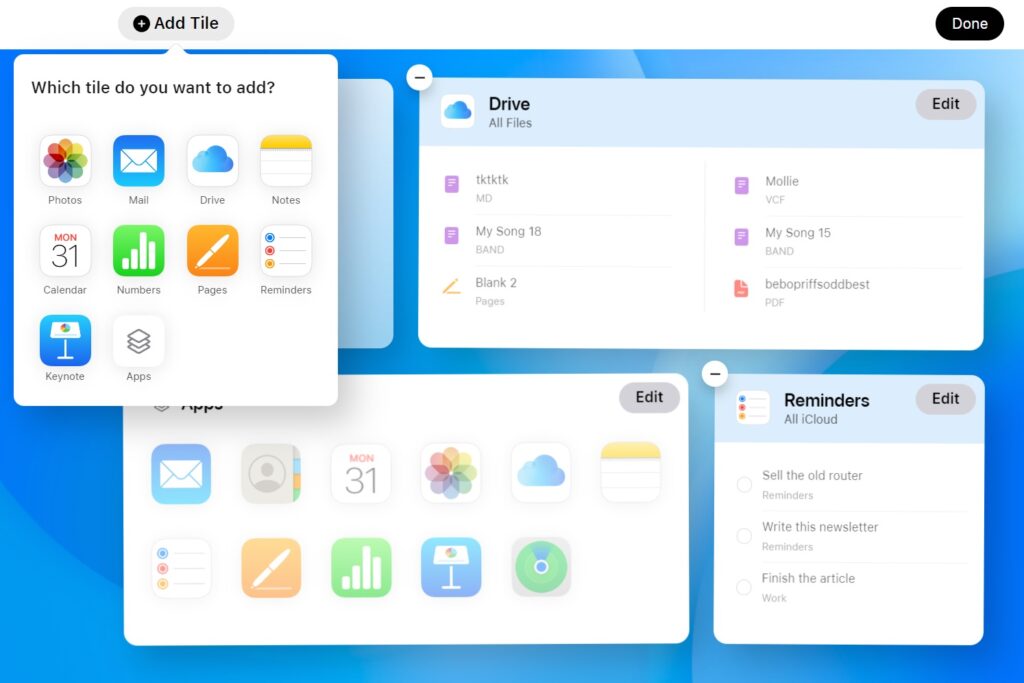
An upgrade for iCloud.com: Apple's testing a new dashboard for the web-based version of iCloud, where you can glance at your mail, reminders, calendar appointments, and more. Hitting the "Customize Home Page" button at the bottom lets you change and rearrange the widgets, and you can use the + button at the top right to quickly create new messages, reminders, and documents. Just visit beta.icloud.com to give it a try. |
New YouTube tips: YouTube has added a couple new tricks to its mobile app, making it easier to find what you're looking for: |
- While in full screen mode, you can now pinch-to-zoom on any part of the video.
- While dragging the video playback bar, drag your finger up for a more precise seek view with chapter titles.
- Not new, but useful: To switch to full-screen mode, swipe up on any video. It's easier than trying to hit that tiny full screen icon.
|
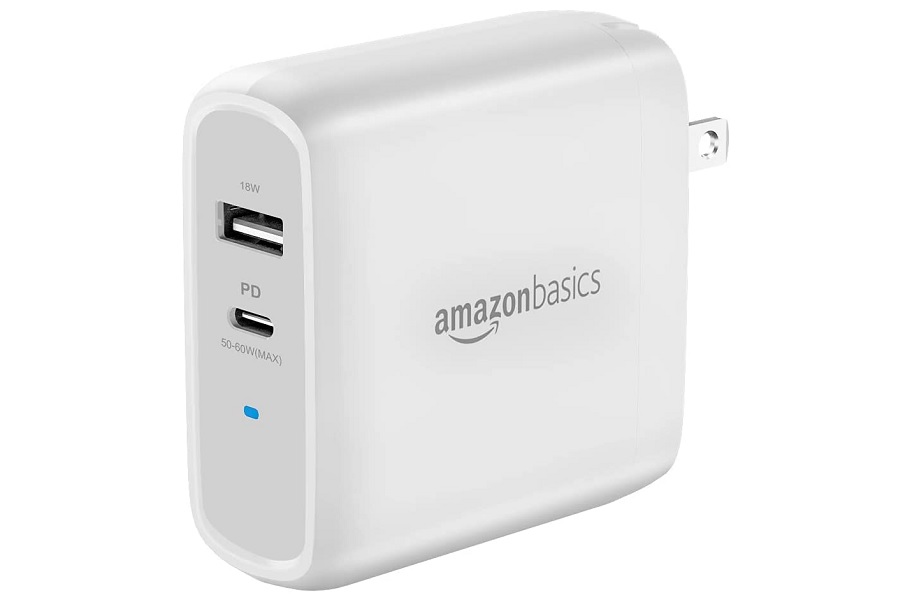
Amazon seems to be clearing out a wide range of cables, chargers, and other accessories under its AmazonBasics label. The deals seem to be going fast, but here are a handful as of this writing: |
Apologies for the somewhat later than usual newsletter, as yesterday's workday was cut a bit short by trick-or-treating. If you were on Halloween door duty, I hope you wound up with some leftovers. |
Also: Shout out to my brother-in-law Brian, whose befuddlement over iCloud Shared Photo Libraries helped inspire this week's feature topic. I certainly learned a few things myself while putting it together. |
Got your own tech questions for me? Just reply to this email to get in touch. |
This has been Advisorator, written by Jared Newman and made possible by readers like you. Manage your subscription by clicking here, or reply to this email with "unsubscribe" in the subject to cancel your membership. |
|

 Jared Newman | November 1, 2022 |