|
Plus: Apple subscription price hikes and an easy-to-miss search trick Plus: Apple subscription price hikes, an easy-to-miss search trick, and Google deals galore |
Last week, Apple announced a new iPad with a major redesign, along with an upgrade to M2 processors for the latest iPads Pro. But because the 10th-generation iPad has some unique features not found on pricier models, figuring out which tablet to get has gotten more complicated. |
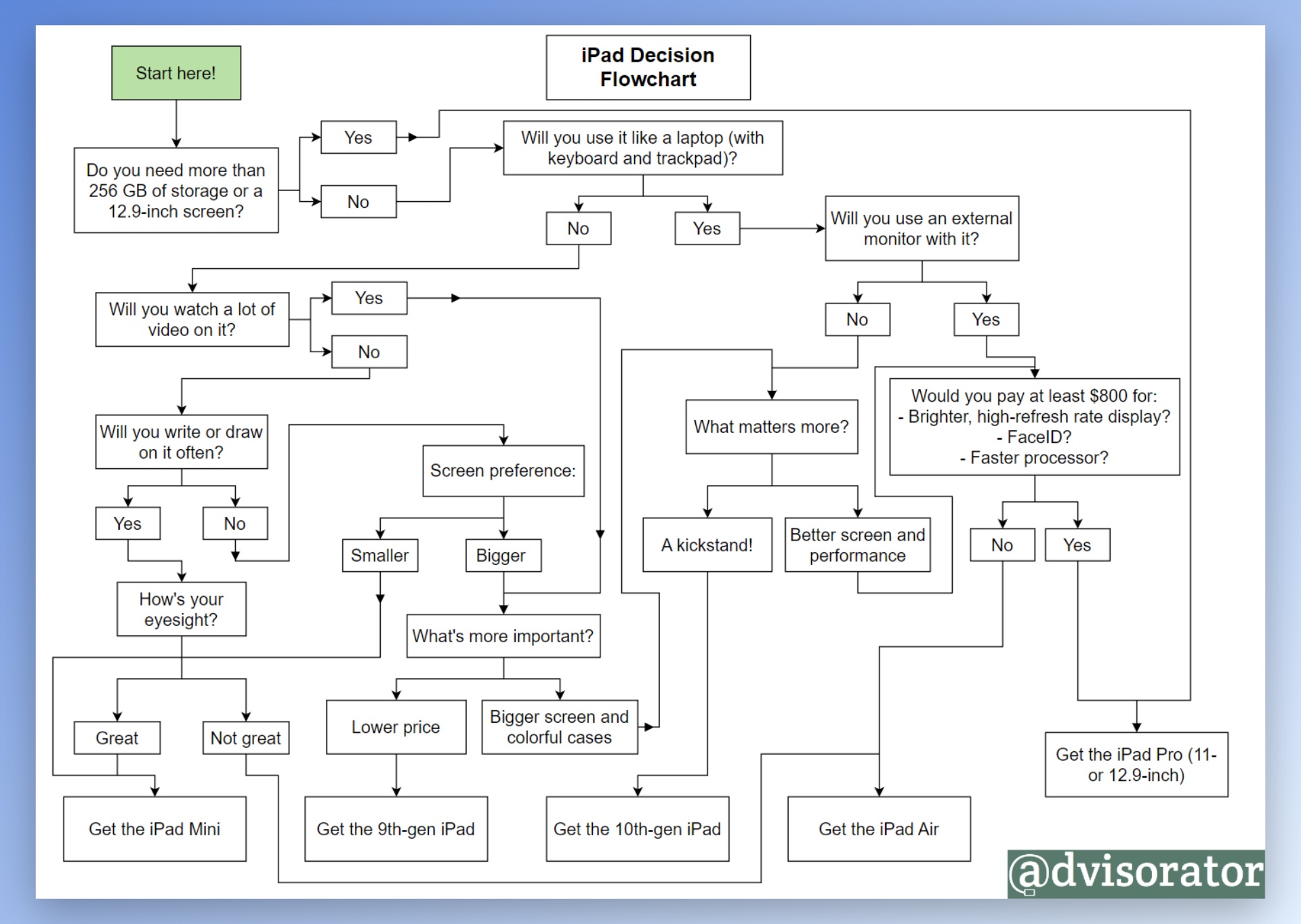
Fret not, though, as I have devised a fun way to help you navigate the labyrinth, dubbed the iPad Decision Flowchart. But first, let's take a look at what Apple actually announced. |
The 10th-generation iPad ($449) looks more like the current iPad Air, with uniform borders around a 10.9-inch screen and several color choices beyond gray and silver. In lieu of a home button, it moves TouchID into the power button on the side. (The 9th-gen model with the old design is sticking around for $329.) |
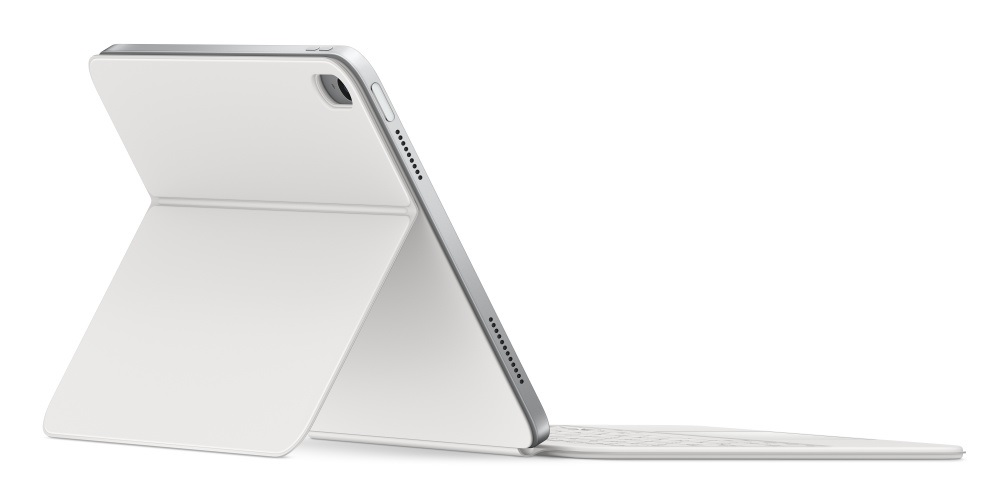
Apple's also moved the front facing camera to the iPad's longer side, which is ideal if you're using it like a laptop. To that end, a new $249 Magic Keyboard Folio comes in two detachable pieces, including an adjustable kickstand and a detachable keyboard-trackpad combo. |
| The Magic Keyboard Folio with detachable keyboard |
Still, the new iPad is missing some features found on the iPad Air and Pro: It uses an A14 Bionic chip instead of an M-Series chip, which means no proper external monitor support, and it doesn't support the Apple Pencil 2, which attaches magnetically to the side of the iPads Mini, Air, and Pro. You can still use the first-gen Apple Pencil, but you'll need a $9 Lightning-to-USB-C adapter to charge it. (New Pencil purchases include the adapter for free.) |
The new iPads Pro, meanwhile, are nearly identical to the previous versions, but they include a newer M2 processor, Wi-Fi 6E support, and a new trick for Apple Pencil users: You can hover the stylus over the screen to preview the cursor or pop up contextual info in supported apps. |
As a prospective iPad buyer, the new lineup leaves me in a bind. |
I love tablets with integrated kickstands and separate, detachable keyboards, and once wrote an entire post at FastCo imploring Apple to bring the concept to the iPad line. |
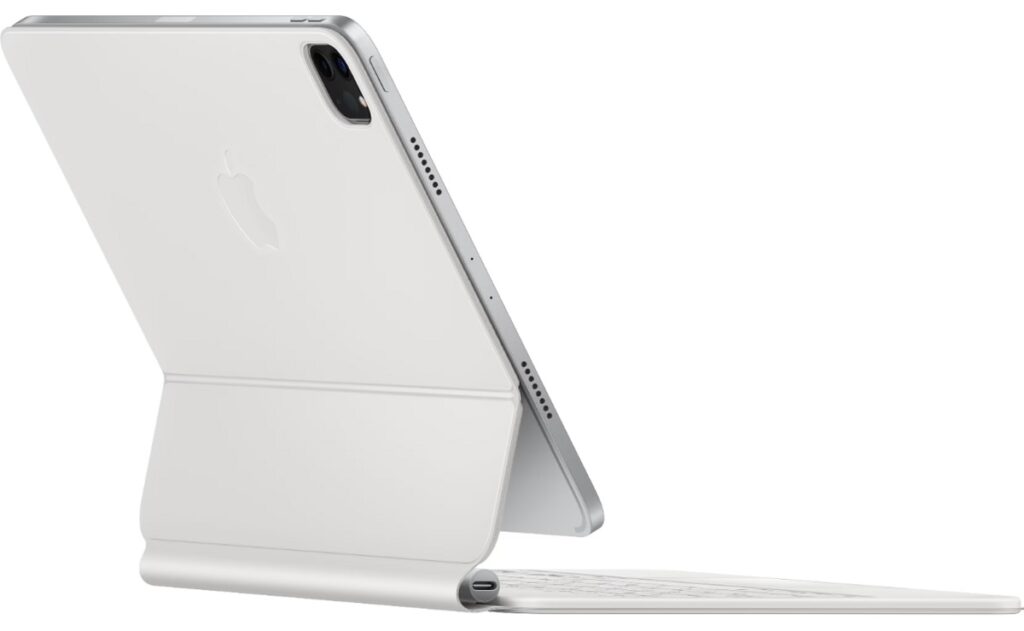
| The kickstandless Magic Keyboard, for iPads Air and Pro |
At the same time, I'm intrigued by the idea of using the iPad with an external monitor, and don't want to deal with a charging dongle for the Apple Pencil. (Having the Pencil jut out from my 10.5-inch iPad Pro's Lightning port is annoying enough.) I also fear that Apple's A-Series processors won't get as much future feature support as iPads with M-Series chips. |
No current iPad ticks all of those boxes. And yes, I know Logitech makes its own keyboard-and-kickstand accessories for the iPad. I have one and find it a bit too bulky, plus its trackpad doesn't support double-tap and drag for reasons Logitech has never explained. (I've asked, many times.) |
Enter the iPad Decision Flowchart |
So what does all this mean for the prospective iPad buyer? If you're trying to choose between tablets, I've devised a flowchart to help you walk through all the potential pathways. You can view the full version by clicking the image below: |
As for me, the most likely outcome is that I'll just wait and see what future iPad models bring. Hopefully the next generation's decision tree won't be so messy. |
- Apple Music: $11 per month (up $1), $17 per month for families (up $2)
- Apple TV+: $7 per month (up $2)
- Apple One: Individual $17 per month (up $2), Family $23 per month (up $3), Premiere $33 per month (up $3).
|
I'm not surprised by the increase for Apple TV+, which has significantly bulked up on content over the past few years. But Apple says the hikes for streaming music are due to increased licensing costs, which makes me think other music services will follow. YouTube Premium, which includes both YouTube Music and ad-free YouTube viewing, just announced a price hike for families last week. |
Google's targeted ad options: Google is launching some new ways to control the kinds of targeted ads you see on the company's apps and websites. When you see an ad on YouTube, for instance, you'll be able to tap the ⋮ menu and vote for more or less of that topic. The company's also launching a "My Ad Center" page to further customize your interests. (The page is still rolling out, so that link may not work for you yet.) |
An easily-overlooked search trick: Next time you're reading an article online and come across a name, word, or phrase you want to research further, try this: |
- Highlight the text.
- Right-click on it.
- Select "Search" in the pop-up context menu.
|
Highlight, right-click, search. It might sound a little clunky, but in practice it's more efficient than copying, opening a new browser tab, and pasting. |
While I've admittedly known about this trick for years, it never clicked for me until a couple of weeks ago, when I made a point of turning it into a habit. That's often how things go in tech, with some of the best tools hiding in plain sight. |
A version of this trick also exists on most mobile web browsers: Just highlight the snippet of text, then select "Search." (On iOS, you'll have to hit the little right arrow in the pop-up menu to see this option.) |
Want to take it a step further? Check out the Context Menu Search browser extension, which lets you add other sites and search engines to the pop-up menu. That way, you can instantly look up the highlighted text on sites like YouTube, Wikipedia, and Amazon. (For my fellow Vivaldi browser users, no extension is necessary. Just head to Settings > Search to customize your sources, then look for the "Search With" option in the pop-up menu.) |
Now, all you have to do is develop the muscle memory to use this handy search trick in the first place. I can attest that it's well worth the effort. |
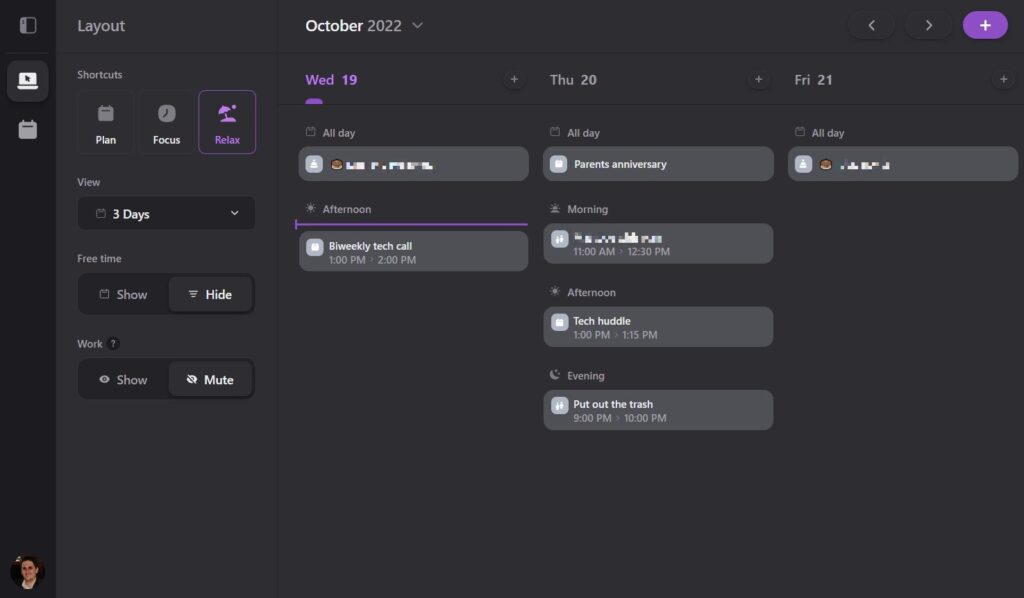
A cool new calendar app: As a Google Calendar user, I've been enjoying a new app and website called Daybridge. Unlike the standard Google Calendar app, Daybridge lets you hide unbooked time slots while still showing a traditional weeklong or three-day view. The app also suggests color-coding based on event type, such as Hobbies or Trips. The result is a more condensed calendar that's easier to glance at. |
Daybridge is still in beta so it's a little rough around the edges, but it's worth a try if you're interested in a new way to look at your calendar. (Via the Deepculture newsletter.) |
The Nest Hub and Nest Hub Max are particularly notable here, as they make great digital photo frames in conjunction with Google Photos. I'd pick one up if my house wasn't already lousy with digital photo frames (especially after building a couple of my own). |
If by chance the iPad Decision Flowchart still has you stumped, send me an email and I'll be happy to help. And as always, you can email me for advice on any tech topic, and I'll do my best to answer. |
This has been Advisorator, written by Jared Newman and made possible by readers like you. Manage your subscription by clicking here, or reply to this email with "unsubscribe" in the subject to cancel your membership. |
|

 Jared Newman | October 25, 2022 |