|
Plus: A powerful webcam app and the return of free iPhones. Streaming music made simple |
Plus: Alexa and Nest cozy up, a powerful webcam app, and the return of free iPhones. |
Before we get started, let's have a moment of silence for Spotify Stations. |
Compared to the regular Spotify app, Spotify Stations offered a simpler way to play customizable internet radio stations. Just by picking an artist or genre, you could jump directly into a relevant playlist of songs. The app also let you tweak each station by adding more of your preferred artists, and you could swipe up or down to quickly switch between the stations you'd created. |
Sadly, Spotify announced last week that it will shut down Spotify Stations on May 16, saying it was just an experiment (albeit one that ran for three years). Existing users can still access the app at the moment, but Spotify is now directing people toward its main app's radio features instead. |
That's too bad, because launching custom radio stations in Spotify is a much clunkier experience that requires navigating through more menu layers. Perhaps that's by design, as Spotify makes more money by steering app users toward podcasts anyway. |
If, like me, you still want a simpler way of playing music on your phone, it's time to revisit Pandora, whose focus on internet radio has never wavered. |
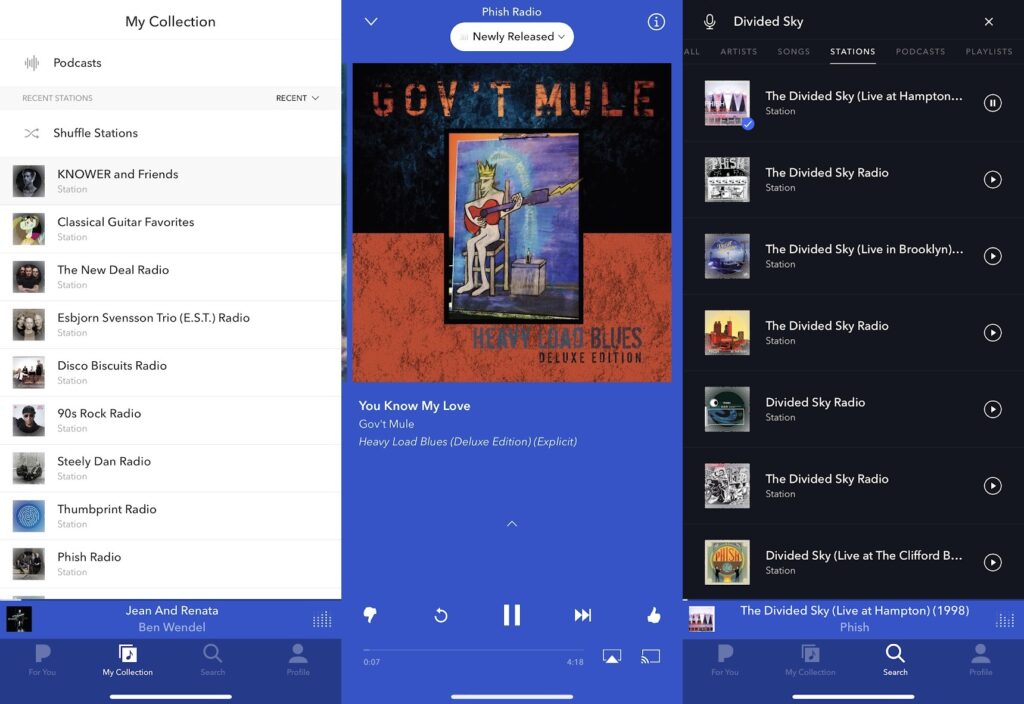
With Pandora, you can choose a single artist or song, and the app will generate an endless playlist of similar-sounding music. You can then fine-tune each station by giving a thumbs up or thumbs down to each track, and can switch between stations with just a couple of taps. The app is still free, with a $5 per month upgrade to remove ads, or a $10 per month subscription if you want an on-demand catalog similar to Spotify. |
To create a station, just head to the search tab, type the name of an artist, and hit the play button next to any of the results. You can also create stations based on the sound of a particular song or an entire genre. Any stations you create will automatically appear in the "My Collections" tab, with the most recent stations at the top. To remove a station from this list, just swipe left and hit "Delete." |
Once you've set up a handful of stations, Pandora becomes the simplest way to start enjoying music, especially when you're not sure what to play in the first place. These stations will also sync across all your devices, so you can listen to the same stations on phones, tablets, computers, smart speakers, and streaming TV devices. |
Rolling your own stations |
Pandora also offers some powerful station customization features that are easy to overlook: |
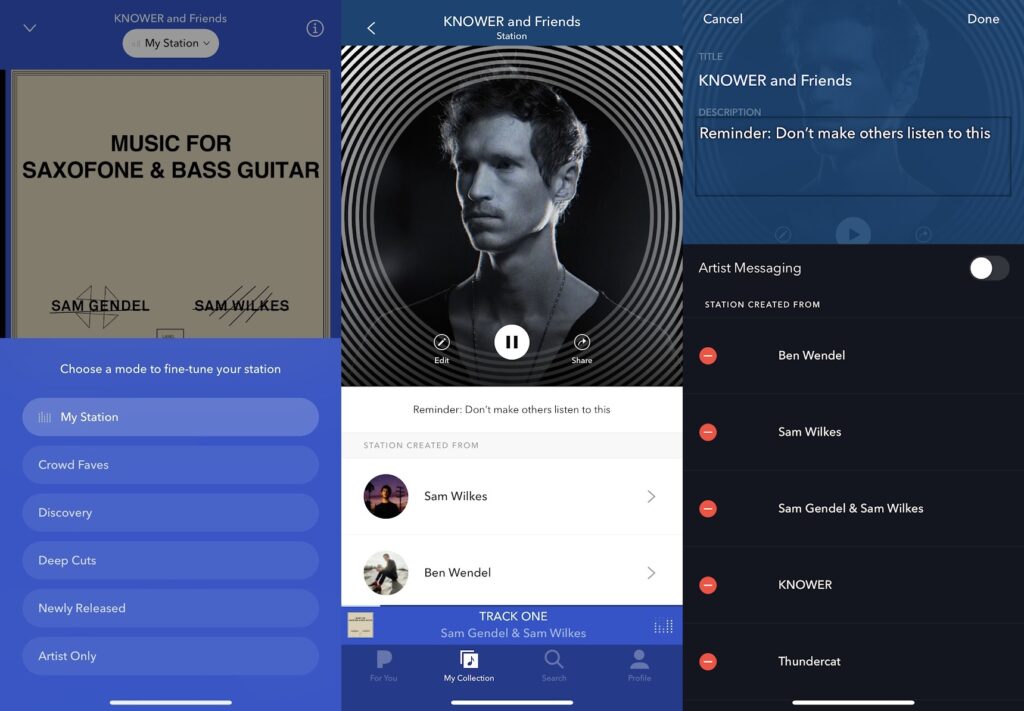
Listening modes: If you're not recognizing enough of the songs—or finding the song selection too mainstream—try tapping the "My Station" button at the top of the now playing screen. From there you can switch to a different listening mode, such as "Crowd Faves," "Discovery," "Deep Cuts," and "Newly Released." (There's also an "Artist Only" option, which is only available if you sit through a video ad or pay for a premium Pandora subscription.) |
Additional sounds: To personalize a station even further, you can add more of the songs or artists you'd like to hear, and Pandora will try to find music that sounds similar. From the now playing screen, hit the "i" icon at the top-right, then hit the "+" button next to "Add Variety" and search for the songs or artists you want to add. (You can get pretty experimental with this, mashing up music from different eras or even different genres.) |
Custom station names: Once you've set up the perfect station, give it a unique name by hitting the "i" button from the now playing screen, then hitting "edit" to the left of the play button. From here you can change the station name, add an optional description, and delete any artists or songs that you previously added. |
Negative signals: If you like a song but are sick of hearing it, swipe up from the now playing screen, hit the ... button near the top-right, and select "I'm tired of this track" to keep it out of rotation for a while. This is a useful alternative to the thumbs down button, which tells Pandora that you don't like the song at all. |
Other custom station options |
While Pandora is the simplest way to make your own radio stations, it's not the only option. Most other streaming music services can create stations based on a specific artist or song, and some can even create stations based on a playlist, effectively mimicking Pandora's multi-artist stations. Here's how to set these up: |
-
Spotify: Tap ... from any playlist, then select "Go to radio."
-
YouTube Music: Tap the ⋮ icon next to any playlist, then select "Start Radio."
-
Amazon Music: Select a playlist, then select "Play Similar Music." (You may have to hit the the ⋮ icon first.)
-
Apple Music: Tap "..." in the Now Playing menu, then select "Create Station."
|
For my fellow Plex Media Server users, the Plexamp app also offers a cool "Mix Builder" feature that generates quick playlists based on the artists you choose. An even cooler "Sonic Adventure" feature makes a playlist connecting the dots between any two artists in your library. |
Even if you use one of the above apps for most of your music listening, Pandora is still great for those moments of indecision. Without Spotify Stations to lean on, I expect to be using Pandora more often. |
Alexa and Nest cozy up: Kudos to Amazon and Google for realizing that siloed smart homes are bad for business as well as for users. If you have a 2021 Nest Cam from Google, you can now view live camera feeds through Amazon's Echo Show and Fire TV devices, and you can talk to whoever's at the door using a Nest Doorbell camera and Echo speaker. You'll also soon be able to get an announcement from Alexa when Nest cameras detect when a person arrives. |
To start using these these features, you enable the Google Nest skill through the Alexa app. Google's support page also has some extra guidance on connecting the two ecosystems. |
Having to figure out what works with what is by far the biggest smart home headache right now. While a forthcoming industry standard called Matter might help on that front, it's nice to see major players working directly together in the meantime. (Now, if only Amazon's Ring cameras would integrate with Google's smart displays and Chromecast devices.) |
Firefox's new features: Mozilla Firefox is getting some nice upgrades to coincide with the launch of version 100. On the desktop, picture-in-picture mode now supports captions and subtitles in Netflix, YouTube, Amazon Prime Video, and any other site with WebVTT format support. On the mobile side, Mozilla's adding some new home screen wallpapers and a history view that groups sites by domain. |
The most clever addition, however, is a new "Inactive Tabs" view on the mobile app, which shows any pages you haven't visited in 14 days along with a button to close them all at once. (This first launched on Android last year, but is now making its way to iOS.) Having seen some unspeakably large tab collections on other people's phones, I'd say this qualifies as a killer feature. |
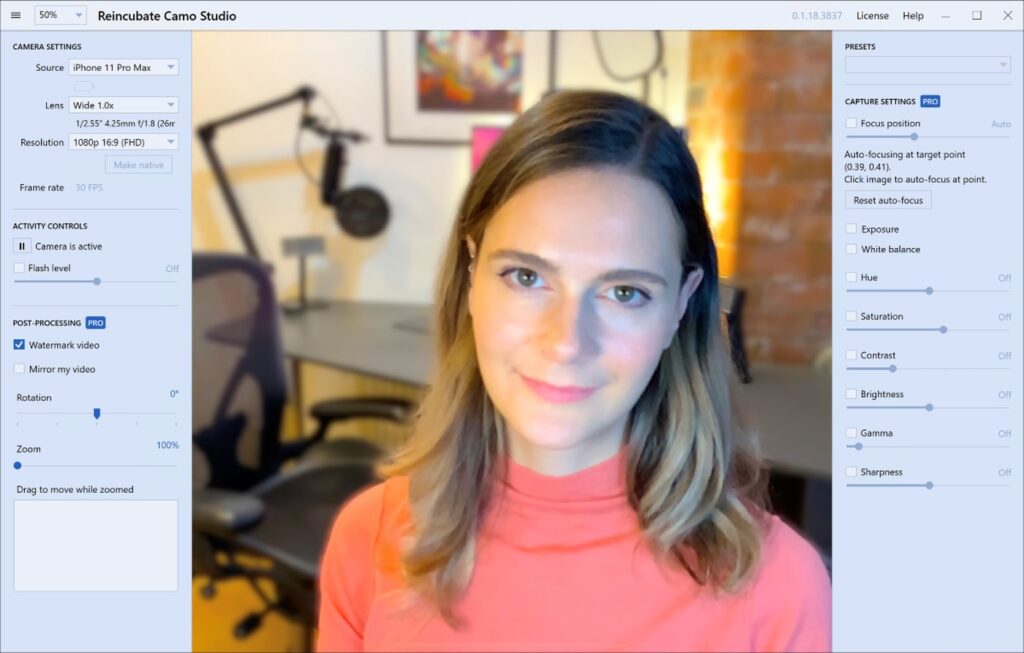
A powerful webcam app: Camo is yet another app that turns your phone into a webcam for video calls, but it's better than any other option I've tried so far. It's available for Windows and Mac, works with iPhones and Android phones, doesn't come with any advertising, and has a robust free version along with some powerful paid upgrades. |
The developers seem to recognize that Camo is ideal for outdated phones: It works just fine on my old iPhone 6 Plus running iOS 12.5—an iOS version that many others apps have now abandoned—and produces better video than my Logitech C920 webcam. |
To use Camo, install the mobile app for iOS or Android, then visit camo.studio on your computer to download the companion desktop software. After plugging your phone into the computer via USB, you can use the Camo desktop app to adjust video settings, and can select "Camo" as your camera source in apps like Zoom and WhatsApp for an instantly-improved picture. Last week, Camo also became the first "virtual camera" app to work with Facetime and Safari, provided you're running Mac OS 12.3 or higher. (That's how I learned about it in the first place.) |
If you have an Android phone, the process isn't exactly plug-and-play, as you'll first need to enable Developer Mode and USB Debugging on your phone—the app provides instructions on doing this—before plugging it into your computer. Camo's Windows app also needs to install some additional drivers for users who don't already have iTunes installed. |
The free version supports up to 720p video and a handful of color correction presets, while the Pro adds 1080p video, a background-blurring "Portrait" mode, the ability to use the phone's flash for lighting, and a variety of ways to fine-tune the picture. It costs $5 per month, $40 per year, or $80 for a lifetime license. (You can also save 20% on the monthly or annual plans with the code ASK20.) |
The developers have also created a helpful guide to the best mounting options so you can leave your old webcam behind. |
Verizon has brought back the deal that gets you $800 off any iPhone 13 model with an eligible trade-in and a three-year service commitment. The deal is available for both new and existing customers—no added lines necessary—and eligible trade-ins include phones as old as the iPhone XR, Samsung Galaxy S9, and Pixel 4a. If you stick with the base iPhone 13, and you plan to stick with Verizon for the long haul, this effectively lets you get the phone for free. |
(If you don't have an eligible phone on-hand, consider buying a refurbished one for cheap, then using that for your trade-in. I know folks who've had success with this method.) |
Other notable deals this morning: |
Parting thought: Anyone here have a favorite tool for viewing and organizing photos on your own computer? I've become intrigued by the idea after being asked about it by readers, and even started looking into self-hosted photo servers such as PhotoPrism and NextCloud Photos. Both, however, have deeply technical setup processes that even I'm struggling with. If anyone has other suggestions—or has enjoyed success with the ones I just mentioned—I'm all ears! |
This has been Advisorator, written by Jared Newman and made possible by readers like you. Manage your subscription by clicking here, or reply to this email with "unsubscribe" in the subject to cancel your membership. |
|

 Jared Newman | May 10, 2022 |