
Fly through your computer

How I’m using Raycast to get things done
Plus: AI shopping assistants, Amazon’s Auto Buy, and secret Spotify savings.
 Jared Newman |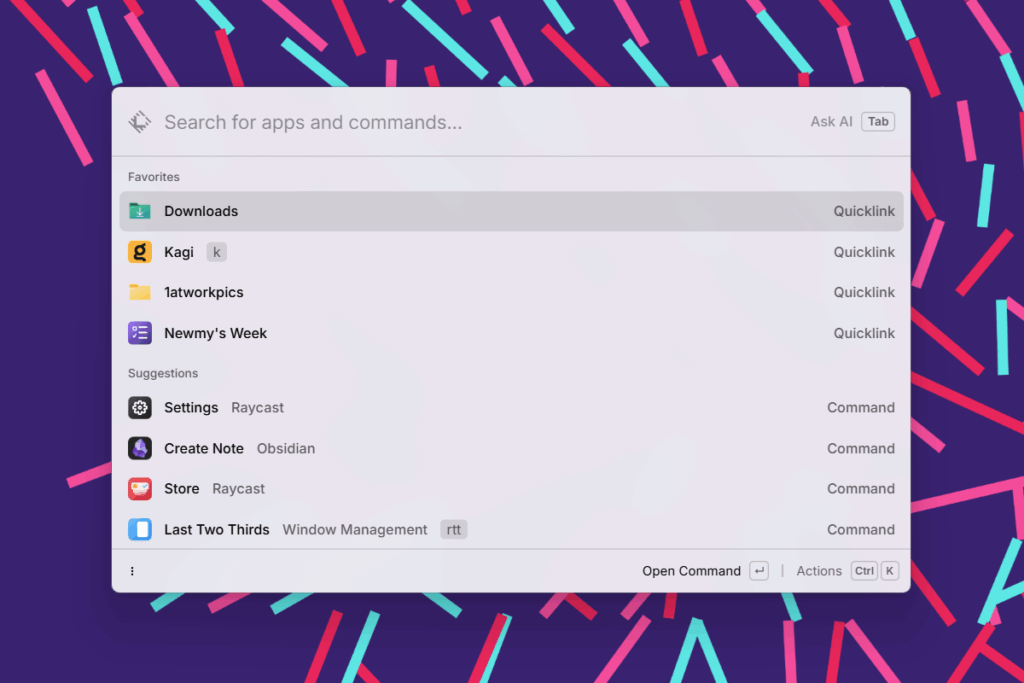
Hey there! I’m Jared Newman, a longtime tech journalist, and you’re reading the free edition of Advisorator, my weekly tech advice newsletter. Did someone share this newsletter with you? Sign up to get it every Tuesday.
Late last month, one of the best productivity apps for Mac finally became available for Windows.
That would be Raycast, which is like a keyboard-controlled Swiss Army knife for your computer. Open Raycast with a keyboard shortcut—Alt+Space by default on Windows or Option+Space on a Mac—and you can quickly look up files, launch apps, search the web, and more, all from a single text box.
While Apple’s Spotlight feature provides some similar utility on Macs, Raycast is a more powerful and flexible alternative that now works on Windows PCs as well. Most of its functionality is free, with an optional subscription for syncing data across devices and using certain AI features.
Raycast can be a bit daunting at first, but it can feel like a superpower once you get rolling with it. To give you an idea of how useful it can be, here are some ways I’m using it myself …
The rest of this column is for Advisorator’s paying members. Join us for as little as $5 to unlock this week’s feature story and all kinds of other useful tech advice resources.
News in brief
The ups and downs of AI shopping assistants: The AI companies really want you to shop with them, with shopping-specific modes that provide product recommendations and direct purchase links. Perplexity now has a shopping page, and Google has a shopping feature that activates through its AI Mode in search. ChatGPT and Microsoft Copilot have added shopping modes as part of their standard chat apps.
But so far, my experience mirrors that of The Verge’s Stevie Bonifield, who found that these shopping modes are prone to recommending outdated products. I asked them to help me find a 50-inch TV with faster than 60 Hz refresh rates, and all them recommended a Vizio TV from 2022. (Also, Perplexity seemed weirdly fixated sending me to Macy’s—not the first place I’d go for a TV.) Copilot was the only one that even mentioned LG’s 48-inch OLED, which is probably the best option.
I’m sure these shopping modes can be useful as a starting point in certain contexts, but like anything AI-related, you have take what they tell you with a grain of salt.
Other notable reads:
- Google Assistant will stop working on phones after March as Gemini takes over.
- AI-generated recipes might ruin some holiday meals this year.
- I wish more phones had subwoofers like this one.
- Microsoft says it’s working on making File Explorer faster and less cluttered.
- Samsung will release a tri-folding phone this month, coming to the U.S. next year. I do not want to know what it’ll cost.
- By me: I let AI take control of my computer. It didn’t go well.
Tip of the moment
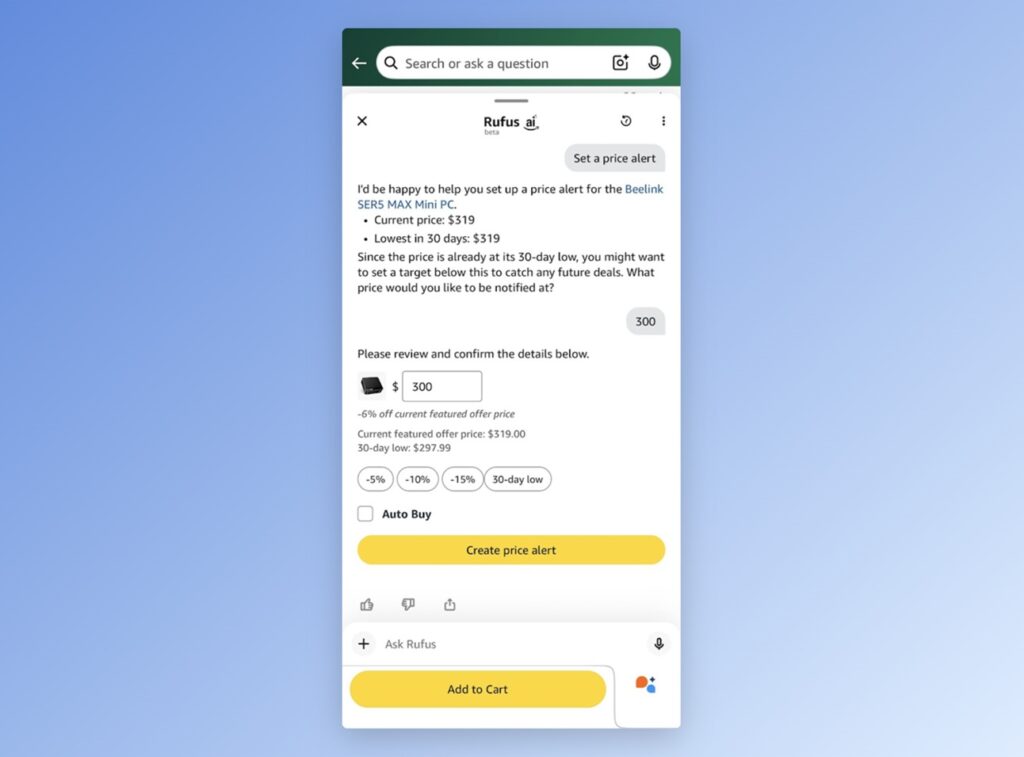
Amazon’s price tracking tools: Amazon has added some new price tracking features to its mobile apps and website, including a way to automatically buy an item when the price falls below a certain threshold.
While viewing an item on Amazon, look for the “Price history” link next to the list price. This will bring up a chat window with Amazon’s Rufus AI, with a chart showing the 30-day price trend. You can click “90D” above the chart for a longer view.
If you’re signed into Amazon’s mobile app, you’ll see a “price alert” option in the chat window as well. Tap on this and specify a target price at which to get notified. There’s also an “Auto Buy” option (thankfully unchecked by default) that will purchase the item automatically when it hits your price target, with a 24-hour window to cancel before it ships.
I have always recommended CamelCamelCamel for Amazon price tracking and alerts, and I still do. But CamelCamelCamel’s price histories aren’t always accurate, and having spent a chunk of Thanksgiving trying to convince family members to use it, I know that not everyone wants to deal with a third-party website for this stuff. In that case, Amazon’s version is worth a look.
I’m iffier on the Auto Buy function, though. Amazon’s modus operandi is to make shopping so frictionless that you wind up buying stuff you might not need, and Auto Buy is an extension of that. Needing some extra effort to complete the transaction is a good thing, in my view.
Try these apps
Tasks with timers: Super Productivity is a free to-do list app where you can set timers for each task. It’s open-source with apps on every platform except iOS, though there is a web app you can use on that device. An option to sync your tasks with Dropbox is available through the Settings menu.
Another notepad calculator: Numpad is another spin on the freeform notepad calculator app, much like Numbr which I’ve mentioned previously. Write down a mathematical expression and it will show you the answer, and you can modify any of the numbers to see the updated calculation in real time. I particularly like how it assists with unit conversion when you type a letter after a number.
Spend wisely
Secret Spotify savings: Rumor has it that Spotify may raise prices again early next year, so here’s a reminder that you can buy yourself an annual gift card to reduce the cost. Best Buy still sells them for $99, which saves $45 over the current price of $12 per month over 12 months.
Note that these cards only work with Spotify’s Premium Individual plan. You can’t use them for Family or Duo plans.
For more help saving money on streaming music, consult my just-updated guide, or do what I do and build your own music server instead.
Thanks for reading! Catch you next week.
Until then,
Jared
Did someone share this newsletter with you? Sign up to get it every Tuesday.