
8/22/2023: My nerdy new notes setup

Geeking out over Obsidian
Plus: Gross gadgets, spared photo storage, and one-click YouTube summaries


After singing Notion’s praises in newsletters past, I must admit to finding a better match for notetaking.
That would be Obsidian, a free app whose approach to personal notes is geekier, but also more flexible. Even better, Obsidian is less dependent on the cloud and gives users total control over how and where their notes are stored.
I started writing story drafts in Obsidian around the start of the year, but decided to go all-in for notetaking a few weeks ago after becoming jaded with Notion. It’s now my primary way to record story ideas, plan my newsletters, and manage my weekly agenda. I’m even using it to generate and track invoices.
Compared to other notetaking apps such as Notion and Evernote, Obsidian has a steeper learning curve. But once you unlock all its powers, you might not want to use anything else.
Need to know
Clean your smartwatch band: Every so often, a story arises about how foul our gadgets get. Apple Watch bands are not immune, as a new study has found that 95% of them carry some kind of dangerous bacteria. Previous entries in the genre include keyboards being dirtier than toilet seats and smartphones carrying fecal matter.
“How to clean your gross gadgets” has been lingering in my column idea file for a while now, and I’ll write it up if there’s sufficient interest. In the meantime, see Apple’s help page on how to get the filth off your smartwatch bands. (Related: Google will soon remind Pixel Buds users to clean their earbuds after 120 hours of use.)
Amazon Music price hikes: Bundling Amazon Music with Prime isn’t the deal it used to be. The streaming music service, which costs $11 per month without Prime, now costs $10 per month or $99 per year for Prime members, up from $9 per month or $89 per year previously. Amazon Music’s family plan pricing is also increasing to $17 per month or $169 per year, up from $16 per month or $159 per year. (Family plans don’t get a Prime discount.)
Nearly every streaming music provider has raised prices over the last year, citing increases in music licensing costs. If you missed it, I wrote a newsletter a few weeks ago on how you can still save money on streaming music, and I’ve updated my price comparison chart to reflect Amazon’s latest moves.
Tip of the moment
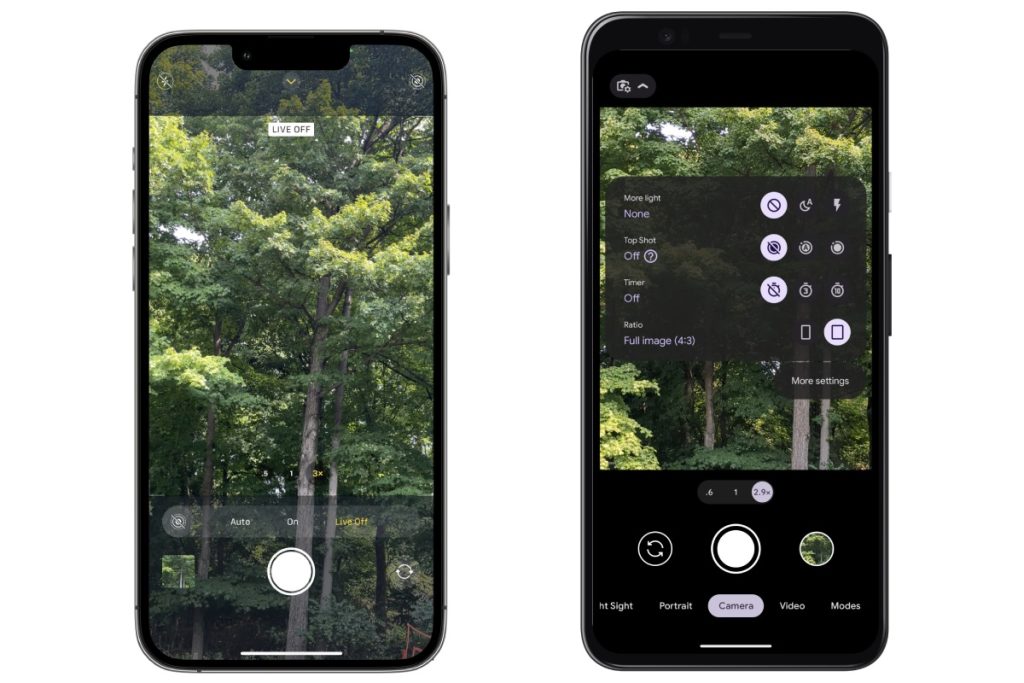
Save photo storage space: Do you love capturing video clips each time you take a smartphone photo? If not—or you had no idea this was even happening—consider disabling Live Photos by default.
In my tests, Apple’s Live Photos feature—and the similar Top Shot on Pixel phones—can use two to three times more storage per picture, leading to higher ongoing costs when you back up photos to the cloud. I’m not saying you should never use Live Photos—there’s potential joy in those extra moments—but consider invoking them intentionally instead of all the time:
- iPhone: Head to Settings > Camera > Preserve Settings, then turn on the Live Photo toggle. Now, you can tap the bullseye-like icon in the Camera app to disable Live Photos, and it will remember your choice for next time.
- Pixel phones: In the Camera app, tap the settings button at the top, then set Top Shot to Off.
- Samsung phones: In the Camera app, tap the square icon with a play button inside it so it’s greyed out.
Now try this
One-click YouTube summaries: I’ve previously mentioned summarize.tech as a way to get AI-generated summaries of any YouTube video, but I just realized you can create them more easily with the power of bookmarklets.
Just create a new bookmark in your browser, give it a name like “Summarize video,” and paste the following into the address field:
javascript:(function(){if(location.href.indexOf('http')!=0){input=prompt('URL:','http://');if(input!=null){location.href='http://summarize.tech/'+input}}else{location.href='http://summarize.tech/'+location.href;}})();This reloads the page with “summarize.tech/” before the YouTube address, giving you a written summary. The site’s results aren’t super in-depth, but they’ll help you decide which parts of a video to watch, or whether they’re worth watching at all. It even works in your mobile browser.
And yes, I’ve added this to my big list of browser bookmarklets for Advisorator subscribers, so you can drag the link directly into your bookmarks bar instead of copying and pasting code.
Around the web
- By me: Onyx’s E Ink tablet could replace your iPad and Kindle—at a cost. (Use this link if you hit a paywall.)
- Latest Twitter (er, X) drama: Slowing traffic to sites Elon hates, hiding headlines in article links, and a potential ban on blocking.
- WhatsApp adds an “HD” option for photo sharing.
- AirPods Max headphone users sue Apple over “condensation death.”
- The Markup has advice on finding red flags in privacy policies. (And don’t forget TOS;DR.)
- A free online game helps you empathize with your overwhelmed OS.
Spend wisely
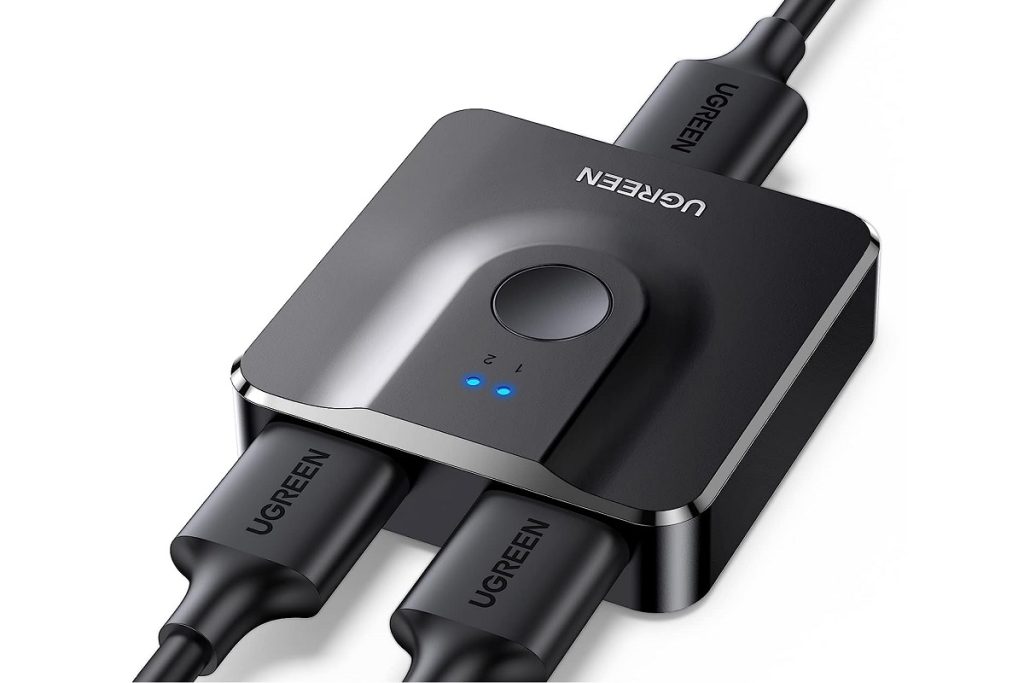
Need an extra HDMI input for your TV or computer monitor? UGreen’s two-port splitter is on sale for $7.19 when you clip the on-page 10% coupon and use the code 30I7EFY7 at checkout.
The splitter supports 4K output at 60 frames per second, and uses a button to switch between ports. I use this exact model to switch between the Apple TV and Nintendo Switch in our living room without issue.
UGreen’s three-way splitter with remote control is also on sale for for $30 when you clip the on-page coupon and use the promo code 166VNYTP, but I haven’t used that model myself.
Thanks for reading!
Got questions or comments about anything you’ve read here? Just reply to this email to get in touch!
Until next week,
Jared