
Tip of the week: Consider a calmer lock screen

Tip of the week: Consider a calmer lock screen

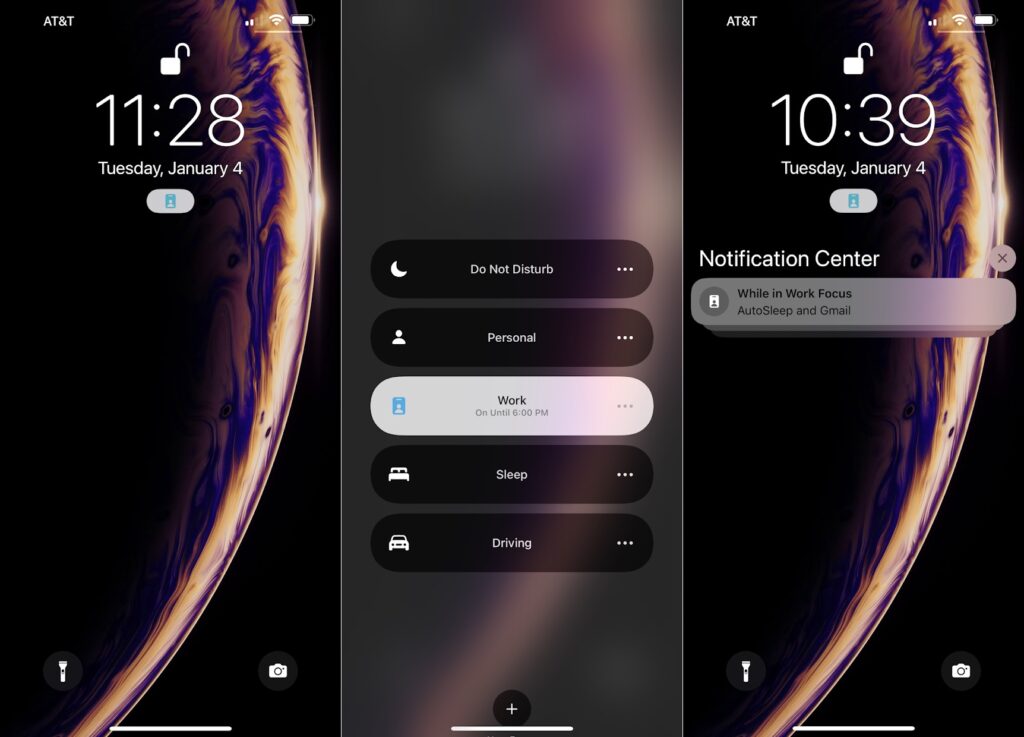
Lately I’ve realized that having my phone light up with new emails, text messages, and Twitter notifications isn’t a good thing, especially when I’m trying to concentrate on work.
That’s why I’ve become a big fan of iOS 15’s Focus feature, which lets you schedule times when only certain notifications can make the phone light up. (The rest get quietly bundled together, and only appear when you swipe up on the lock screen.)
To set this up, head to Settings > Focus, then select one of the preset categories, such as “Work” or “Personal.” Choose the people and apps that you always want to see, and on the next page, hit “Add Schedule” to trigger this mode automatically. Now you can leave your phone on your desk without constantly being beckoned by it.
On Android, you’ve got a few options for keeping your lock screen from becoming a distraction center:
- Head to Settings > Digital Wellbeing > Focus mode, then choose the apps you want to disable and schedule a time to disable them. Note that this will prevent you from even opening the apps in the first place.
- Head to Settings > Display > Lock screen, then disable “Wake screen for notifications,” which will always prevent your phone from lighting up. (These instructions are for Pixel phones, and may differ somewhat for other models.)
- Check out BuzzKill, a $2.49 app that can deliver notifications in batches, similar to Apple’s Focus mode. (This one comes highly recommended by my pal JR Raphael in his Android Intelligence newsletter.)
This tip is an excerpt from the full edition of Advisorator, which covers even more ways to tune up your devices heading into the new year. Sign up for a free trial to get in-depth features, deals, and extra tips in your inbox every week.
Hey folks, I realize it’s been a while since I last sent out a free issue of Advisorator. That’s going to change in the new year, as I’m refocusing on a simpler, weekly tip format that’s worked well for this newsletter in the past. From now on, you can look forward to quick tech tips in your inbox every Tuesday. Thanks for reading, and catch you next week!
Until then,
Jared
You’re receiving this email because you signed up for free tips from Advisorator, Jared Newman’s weekly tech advice newsletter. Help spread the word about this newsletter, or click here to unsubscribe.